This guide explains how to configure a custom source in Actuals. Custom sources allow you to ingest data from systems that are not supported by a native integration.
Prerequisites:
A CSV file containing records that needs to enter Actuals.
Before configuring a new source in the Actuals platform, you need to define what journal entry the platform should construct from that source's data.
1.1 Identify the Transaction Type
Start by understanding the nature of the data in your source file. Different transaction types have different accounting implications and will result in different journal entries. Ask yourself:
What financial event does each record in this source represent? (e.g. a sale, a payment received, a refund, a fee)
Is this source capturing an obligation (something owed or settled) or a cash flow (money movement)?
Correctly identifying the transaction type is essential, as it determines which journal entry should be created and which general ledger accounts should be debited and credited. In the table below you’ll find a list of the most commonly used transaction types in the order-to-cash process:
1.2 Determine the Desired Journal Entry for the Source
With the transaction type identified, you can define journal entries that Actuals should construct for each record in this source.
Below you’ll find an (expandable) list with transaction types and their corresponding basic journal entries. These proposed journal entries give good starting point but can be altered for customer specific needs.
Invoice
Basic invoice journal entry with direct revenue recognition a VAT payable amount and outstanding items tracked via the Account Receivable general ledger account.
General Ledger Account
Debit
Credit
Accounts Receivable
121
Revenue
100
VAT payable
21
Credit Note
Basic credit note journal entry with direct revenue recognition a VAT payable amount and outstanding items tracked via the Account Receivable general ledger account.
General Ledger Account
Debit
Credit
Accounts Receivable
121
Revenue
100
VAT payable
21
PSP Payment
Basic PSP payment with direct fee deduction and funds being added to the PSP balance.
General Ledger Account
Debit
Credit
PSP Balance
120
PSP costs
1
Accounts receivable
121
PSP Refund / Chargeback
Basic PSP refund or chargeback with direct fee costs deducted and funds being reduced from the PSP balance.
General Ledger Account
Debit
Credit
PSP Balance
122
PSP costs
1
Accounts receivable
121
PSP Settlement
Basic PSP settlement based on the PSP balance. Funds stored at a clearing account for reconciling with the bank statement.
General Ledger Account
Debit
Credit
PSP Balance
1000
Clearing Account - PSP settlements
1000
Bank statement (Settlement)
Basic bank mutation receiving a PSP settlement, crediting the clearing account to match the recorded PSP settlement entry.
General Ledger Account
Debit
Credit
Bank Balance
1000
Clearing Account - PSP settlements
1000
1.3 Fine tune the entry to fit the accounting flow
Once you know what type of transaction you are dealing with and its default journal entry verify if it works for your accounting flow.
With the accounting flow we consider all the sources that will be connected to the actuals platform and we’ll verify the entries follow each other nicely.
For example if we have an order-to-cash flow where we have identified these transaction types:
Invoice
PSP Payment
PSP Settlement
Bank Statement
We can create a schema verifying the accounting flow would give the desired outcome.
Transaction Type
GL - Accounts receivable 🔀
GL - Revenue
GL - VAT
GL - PSP Balance
GL - PSP Fee
GL - Clearing PSP settlements🔀
GL - Bank balance
Total
Invoice
121
-100
-21
0
PSP Payment
-121
120
1
0
PSP settlement
-120
120
0
Bank statement
-120
120
0
Total
0
-100
-21
0
1
0
120
0
Creating an equivalent schema for own setup can help to verify each general ledger account will end up with the desired outcome after the full accounting flow has completed. Also can help to identify which individual journal entries might need changes.
In this example schema we can see the “Invoice” and “PSP Payment” transaction type will post to the “Account Receivable” general ledger account. For this account we want to activate reconciliation, so we can verify which invoice has been paid.
When setting up a new source, always keep the accounting flow in mind: the journal entry you define must produce entries that post to the shared General Ledger account on which the reconciliation will take place. In this example, both the Invoice source and the Payments source post to the Accounts Receivable GL account - one on the debit side, one on the credit side. It is the entries from these two sources within that single account that Actuals will reconcile against each other.
Step 2. Create the general ledger accounts
Now you know which journal entry (Step 1) you want to create. The general ledger accounts as part of these journal entries must be created in Actuals first. For a detailed walkthrough on creating a general ledger account in Actuals, refer to the guide below (expandable).
Add a General Ledger Account [GUIDE-9]
In Actuals you can maintain a Chart of Accounts. To add a new General Ledger Account:
Sign in to Actuals and navigate to “Configuration” → “Ledgers”
Click ‘’Add new ledger’’
(Optionally) Provide your desired logo.
💡
Logo’s are displayed in several reports and can help to distinguish data from different sources (like different PSP’s visually easily). Actuals provides a predefined list with available logo’s.
Provide the Ledger Code
💡
The general ledger account code is a property you can define and modify to match your with your schema in your ERP.
(Optionally) provide the Code Addition
💡
The code addition property is reserved for accounts identifiers at Payment Service Providers or banks. When you want to add multiple accounts of the same PSP you can use fill this property with you account identifier.
Provide a desired name for the Ledger
Choose a balance type
💡
Define if the general ledger account belongs to the Balance or Profit & Loss statement.
A third option “Not Affecting” is available, this option can be used to store analytical information not affecting your balance or profit & loss statement.
Provide a name for the Ledger Category, i.e. Balance Sheet
💡
The category property can be used to define a reporting structure for a general ledger account. You can create a reporting structure consisting of multiple levels. Use the forward slash “/” as separator for the reporting structure levels.
Currency Revaluation - choose not allowed, unless advised otherwise
💡
Currency revaluation allows you recalculate the value of foreign currency amounts in the general ledger. When this setting is set to “Revaluation allowed.” This general ledger account is available for currency revaluation. When set to “Not Allowed” this general ledger account will be excluded.
Global Code
💡
Actuals comes with a predefined general ledger account schema for certain PSP integrations. This global code property is used to link a general ledger account inside a customers administration to the Actuals global schema. You don’t need to populate this property unless you want to upgrade from a custom connector to the Actuals pre-defined one without adding new general ledger accounts to your administration.
Click ‘’Create’’
Step 3. Analyze the file and create the source
With the journal entry defined and the general ledger accounts created, the next step is to create the source in Actuals. At this stage you are only completing the initial source configuration (not the mapping). The second and third steps related to data mapping will be handled in a later step once the sample file is uploaded to Actuals.
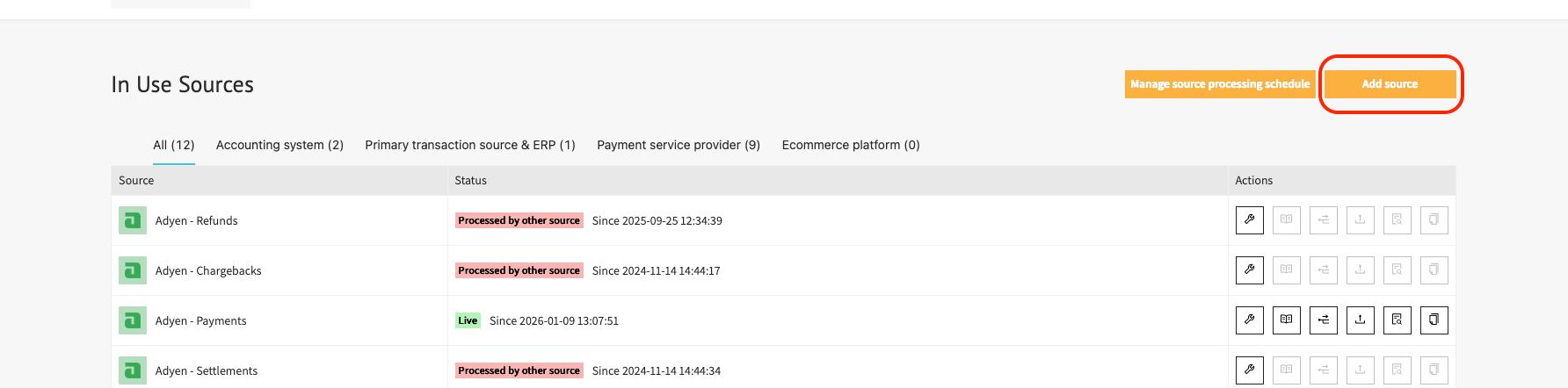
Open the Actuals platform → navigate to Configuration → Sources and click “add a new source” . Work through the source setup as follows:
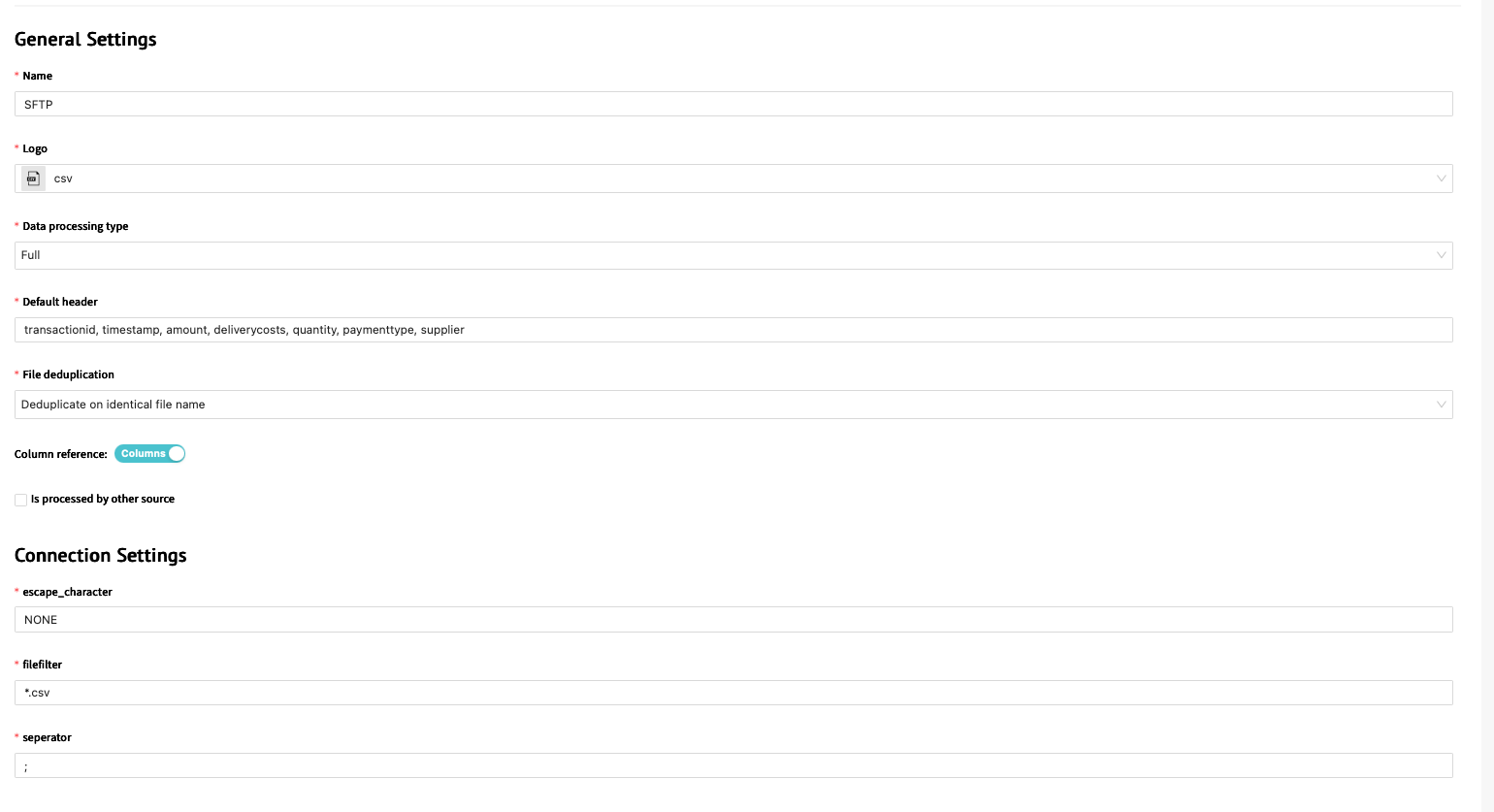
Source Configuration: Select the appropriate integration connection, when providing a custom CSV format choose “Actuals SFTP” .
Complete the general source settings (at least):
Name: The name to idenfity your source
Separator: Make sure to correctly set the CSV delimiter. Often “,” or “;”
Headers: set the headers from the CSV file
At this stage leave the ‘’Column reference’’ setting to default. For guidance on the other fields refer to this page:
Source Iterations and Source Mapping: Leave at default settings and save the source. We’ll come back to these steps later
Now the source has been created successfully and the source becomes available for file upload.
Step 4. Upload the file
With the source created, upload your sample file to Actuals so this sample data becomes available for testing your mapping.
Navigate to the source you just created and open the Source File Upload page. Upload your file by either dragging it into the upload window or browsing to it manually. Before uploading, make sure the file's delimiter matches the delimiter configured for the source - if these do not match, values will not be split (parsed) correctly.
Note that the file size limit for uploads via the web app is 20MB. If your file exceeds this, use an SFTP client to upload it instead. For SFTP upload refer to this guide:
Uploading a file to the Actuals SFTP server [GUIDE-5]
To upload a file to the Actuals SFTP server you two things:
An SFTP client. This is a program you install on your computer . An example is FileZilla.Please contact your internal IT department to install the FTP client recommended by your company.
SFTP credentials - you can request these at your Actuals Implementation Consultant.
This manual assumes use FileZilla to interact with the Actuals SFTP server .
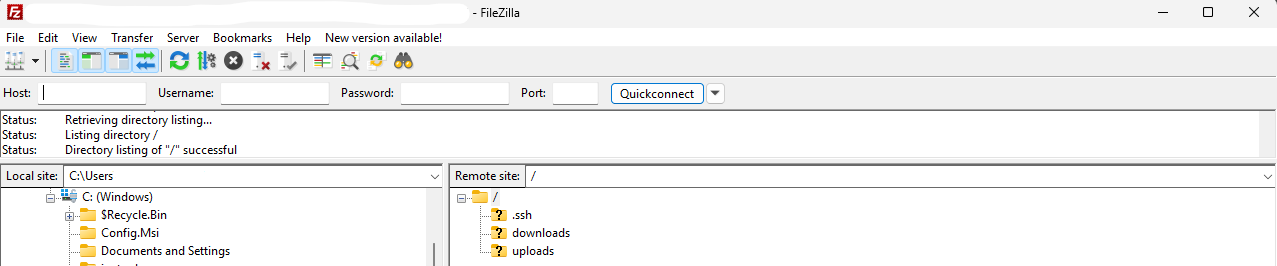
Launch FileZilla on your computer. Locate the QuickConnect bar, which is typically at the top of the main window, just below the toolbar.
Server/Host:sftp.actuals.io
Username: Provided by your implementation consultant
Password: Provided by your implementation consultant
Port:22
Click Quickconnect. You are now connected to the Actuals SFTP server.
You see a “local site” and “Remote site” section.
By dragging files from Local side to the Remote side you can Upload files.
At the bottom section you see the “Queued Files”, “Failed transfers” and “Successfull transfers” section. If you correctly uploaded files you will see the files appear on the “Remote side” and the task are also visible in the Sucessfull transfers section.
The FileZilla interface shows two sections:
• Local Site: Your computer’s files
• Remote Site: Files on the Actuals SFTP serverTo upload files:
Drag files from the Local Site to the Remote Site.
At the bottom of the window, you’ll see three tabs
Queued Files
Failed Transfers
Successful Transfers
When files are uploaded correctly:
• They appear in the Remote Site section.
• The transfer status is visible under Successful Transfers.
Step 5. Determine and setup iterations
Now the file has been uploaded we can start configuring the details of the file conversion. Converting a (raw) file to the desired journal entries consists of a multi-step mapping process.
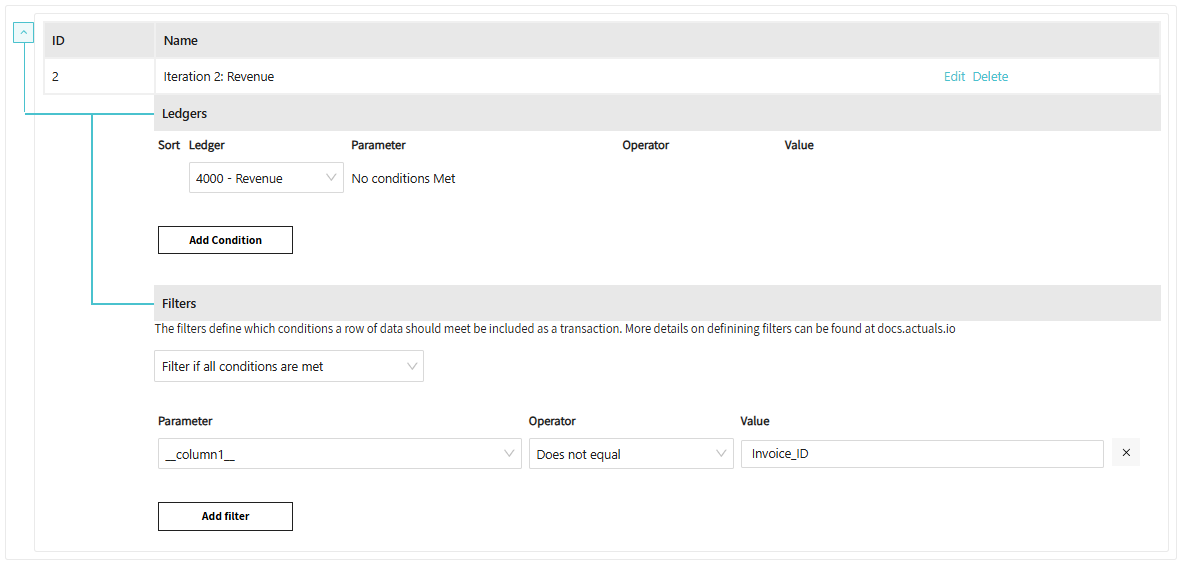
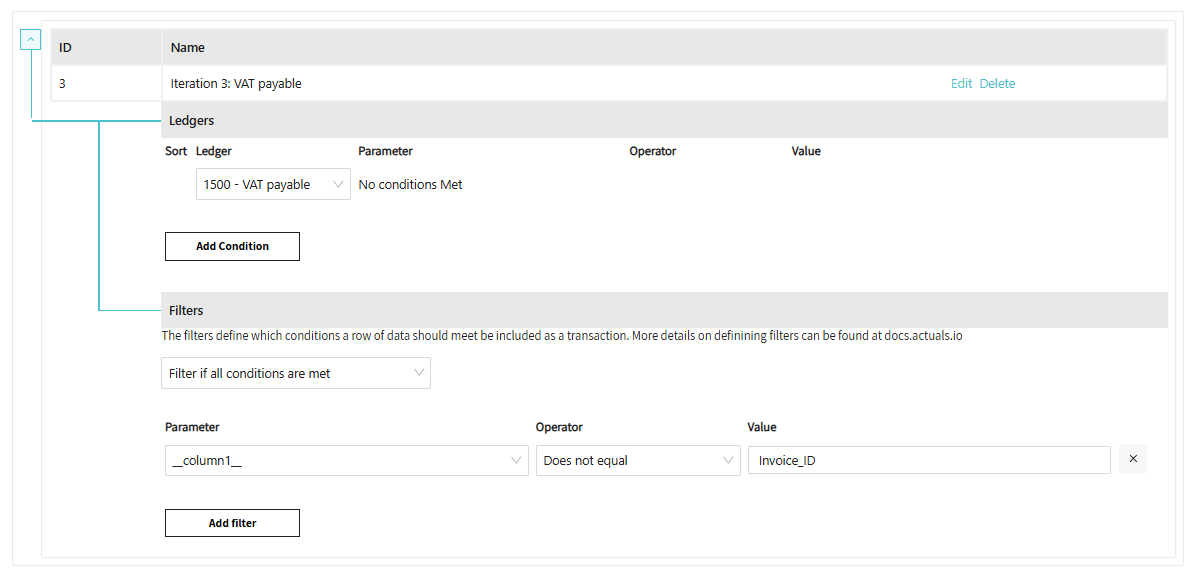
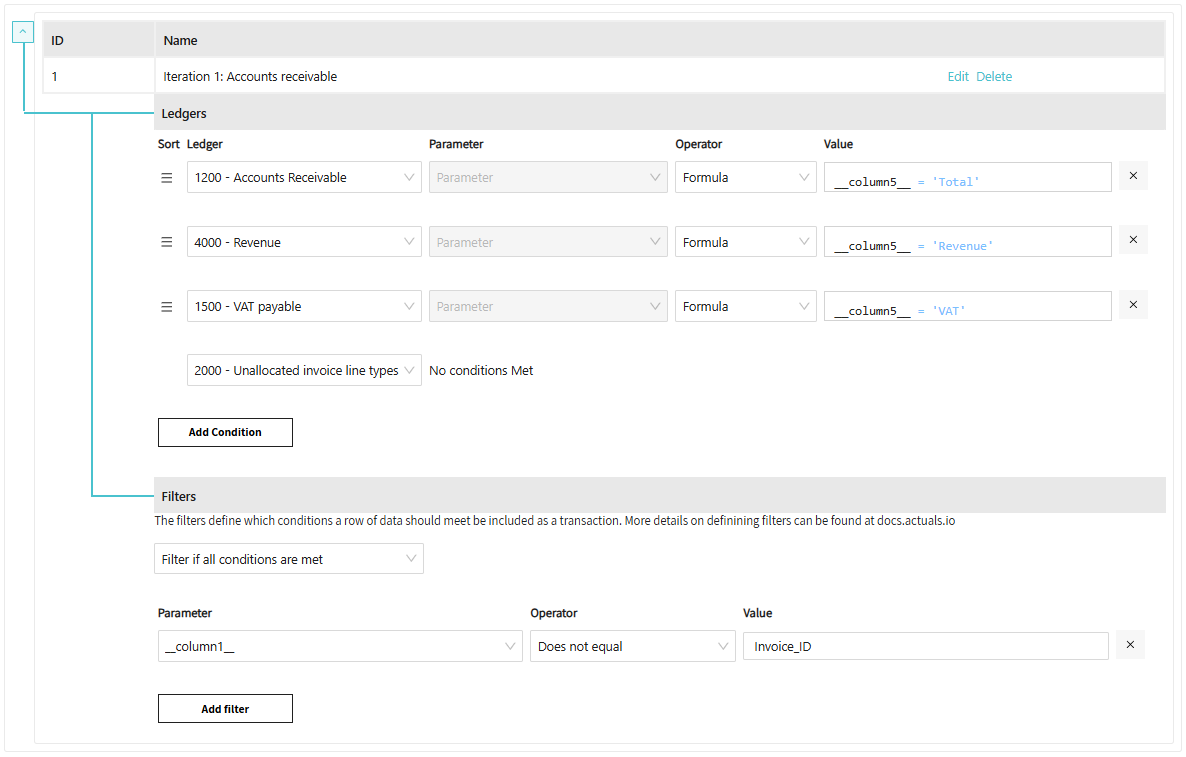
First you determine the iteration settings. The iteration settings determine how many output rows (journal entry lines) will be created from one input row.
Second you create the mapping formulas.
Please follow our separate guide for setting up iterations (expandable below):
Setting up iterations [GUIDE-11]
1.1 Iterations core concept
Iterations determine how much journal entry lines will be created from each raw line and which conditions (filters apply) for creating a transaction line. Because 1 iteration only looks at each line of raw data once, it can only produce one journal entry line for that line during that pass.
1 iteration pass equals 1 journal entry line per 1 raw line.
Term
Description
Raw file
A raw file is an unprocessed (raw) version of the data provided by the customer. If a customer provides a CSV file, that csv file without any alternations is referred to as the raw file.
Input file
See raw file. Because the customer provides raw files as input to Actuals. The raw file often is referred to as the input file.
Raw line
A raw line refers to one row inside a raw file.
Raw table
In this table Actuals stores all raw lines provided by the customer.
Output line
An output line in relation to the source processing process is a line created in the Actuals transaction table. An output line will be created from a raw line that via an iteration with the configured mapping is converted to an output line
Transactions table
In this table Actuals stores processed data. The journal entry lines can be found here.
How it Scales
The 1:1 Scenario: If you only need one journal entry line per line of raw data, you only need one iteration.
The Multi-Entry Line Scenario: If you need to generate multiple journal entry lines from a single line of raw data, you must set up multiple iterations (one for each entry line needed).
Quick Summary Table
Goal
Requirement
1 Entry line per input line
1 Iteration
3 Entry lines per input line
3 Iterations
General best practices for setting up iterations
Use an unallocated fallback general ledger account: When mapping general ledger accounts based on a type column (see example 2 in the next section), we recommend explicitly assigning each known type to its corresponding account. To handle newly introduced or unidentified types, add a fallback account (for example, 2000 – Unallocated invoice line types). This allows you to quickly identify unmapped types in the trial balance, update the mapping, and reprocess the file as needed.
Explicitly assign general ledger accounts: Always use explicit mappings when assigning general ledger accounts. While positive and negative amounts can be used to distinguish invoices from credit memos, a dedicated type column provides a clearer and more reliable distinction and is therefore preferred when available.
Prefer exclude filters over include filters: Apply filters carefully and favor exclude filters over include filters. For example, if a file contains both a header row and invoice lines, exclude the header rather than including only invoice lines. This ensures that if credit memos are added in future files, they are not silently ignored but are either processed or generate a clear error message, prompting corrective action.
Align iteration order with journal entry structure: Order your iterations in the same sequence as the resulting journal entry. For invoices, this typically means starting with accounts receivable, followed by revenue and VAT accounts. Using this order improves readability and consistency.
1.2 How it works in practice
To help you see how the number of iterations changes based on the data structure, here are two examples of invoice files (CSV format) and how the "iteration" logic applies to each.
Example 1: Invoice Header-Level File
Structure: 1 line represents the entire invoice.
Invoice_ID
Date
Customer
Total_Amount
VAT_Amount
Revenue_Amount
INV-1001
2026-04-22
TechSolutions
120.00
20.00
100.00
How many iterations are needed?
In this case, you need 3 iterations.
Iteration 1: Walks through the line to create the Total_Amount entry line. Debiting the Accounts Receivable general ledger account with 120.
Iteration 2: Walks through the same line a second time to create the Revenue_Amount entry. Crediting the Revenue general ledger account with 100.
Iteration 3: Walks through the same line a third time to create the VAT_Amount entry. Crediting the VAT payable general ledger account with 20.
Because all three values sit on one input line, the system must "iterate" that same line three times to build the full journal entry.
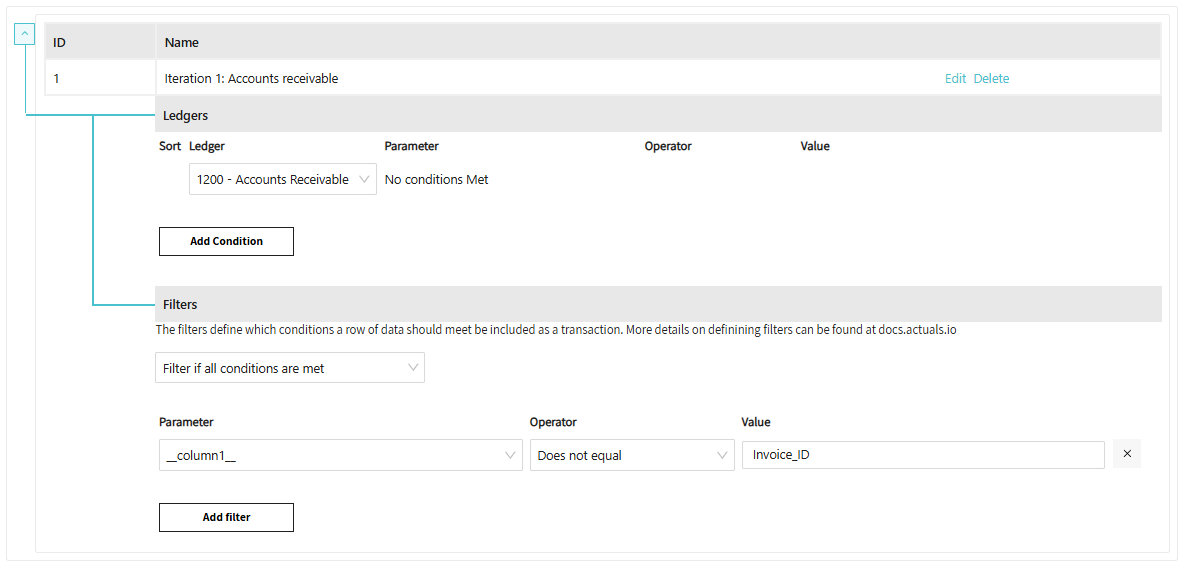
Iteration 1: The Total (Accounts Receivable)
Ledgers: Assign iteration to The “Accounts Receivable” General Ledger Account.
Mapping (to be mapped during mapping step): Look at the VAT_Amount column. Map $20.00 to the Credit side of the VAT Account.
Final Resulting Journal Entry:
Account
Debit
Credit
Originated from iteration
1200 - Accounts Receivable
120.00
1
4000 - Sales Revenue
100.00
2
1500 - VAT Payable
20.00
3
Why? Since the data is "flat" (everything is on one line), the system must revisit that line three times to generate the three separate sides of the accounting journal entry.
Example 2: Line-Item File
Concept: The file is already "pre-split" into three lines. You only need one iteration because the "Type" column tells the system what to do as it walks down the list.
Invoice_ID
Date
Customer
Amount
Type
INV-1001
2026-04-22
TechSolutions
20.00
VAT
INV-1001
2026-04-22
TechSolutions
100.00
Revenue
INV-1001
2026-04-22
TechSolutions
120.00
Total
The Iteration (1 Scan Required)
Instead of multiple iterations, you use Conditional Logic within a single pass.
Iteration 1: It walks through every line and asks, "What is the Type?"
If Type = "Total": It creates a Debit for 120.
If Type = "Revenue": It creates a Credit for 100.
If Type = "VAT": It creates a Credit for 20.
When assigning general ledger accounts based on a type column we recommend to explicitly assign each type to the desired general ledger account.
In the example above we created an additional general ledger account “2000 - Unallocated invoice line types” as a fallback to store still unidentified types. This way you can easily identify inside your trial balance if a unidentified line type was present in the file. To update your mapping and reprocess the file.
Be careful with applying filters. As a best practice we suggest to apply exclude filters instead of include filters.
When a customer provides a file with a header column and invoices. We suggest to exclude the header instead of including the invoices. If in a later file also creditmemo’s will be added to the same file. Including invoices will result in creditmemo’s not being processed.
Excluding creditmemo’s will be processed or result in an error. Giving the user feedback there is something to solve.
The resulting Journal Entry is the same:
Account
Debit
Credit
1200 - Accounts Receivable
120.00
4000 - Sales Revenue
100.00
2150 - VAT Payable
20.00
Key Takeaway: If your raw data file is "compact" (one line for everything), you increase the iterations. If your raw data is "detailed" (separate lines for everything), you can suffice with one iteration.
Step 6. Create the mapping per iteration
With the iteration setup step it’s determined which journal entry lines are created. The mapping of the properties for these journal entry lines still needs to be configured. This is performed in the mapping step. The mandatory properties to map are: “Timestamp”, “Transaction ID” “Amount” and “Currency”.
Default and iteration level mapping
You can provide the mapping on two levels. Default level and iteration level. If a property needs to be mapped in the same way for all iterations. Provide the mapping on Default level. If a different mapping is required per iteration you can provide the mapping on iteration level.
Example mapping
Input file:
Invoice_ID
Date
Vendor
Amount
Type
INV-1001
2026-04-22
TechSolutions
20.00
VAT
INV-1001
2026-04-22
TechSolutions
100.00
Revenue
INV-1001
2026-04-22
TechSolutions
120.00
Total
Mapping:
Property
Mapping
Remarks
Transaction ID
__column1__
Timestamp
TO_TIMESTAMP(__column2__,’YYYY-MM-DD’)
For Timestamp property create a valid timestamp output.
Amount
CASE
WHEN __column5__ IN (’VAT’, ‘Revenue’)
THEN CAST(__column4__ AS DECIMAL(10,2))*100*-1
ELSE CAST(__column4__ AS DECIMAL(10,2))*100
END
For amount create a valid Integer output. To create a valid debit and credit amount implement a case statement to assig
Amountcurrency
CONCAT(’EUR’)
For amountcurrency create a valid ISO4217 output.
For a full overview of mapping options and functions available in Actuals, refer to the Source Mapping Guide.
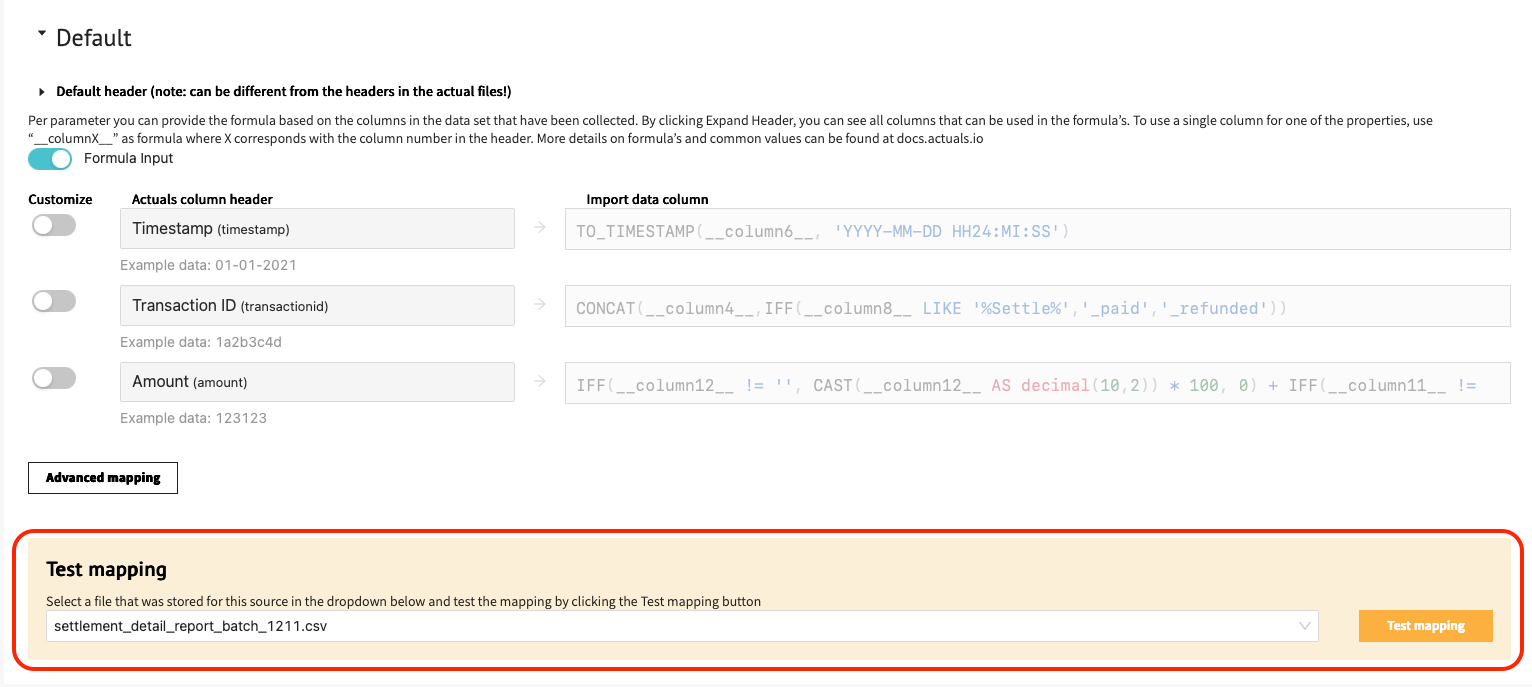
Before saving any mapping configuration, it is strongly recommended to test it first. A Test mapping button is available beneath each iteration's mapping settings. It applies the mapping to the first few lines of a selected source file, giving you a quick way to verify the output is correct. This test is entirely read-only and has no impact on any data processing.
Step 7. Process the file
Processing Source Files
Once the ledgers, iterations and data mapping have been configured for a source the final step is to process the source file. Upon processing the input file the journal entries get created in the transaction table.
To process files:
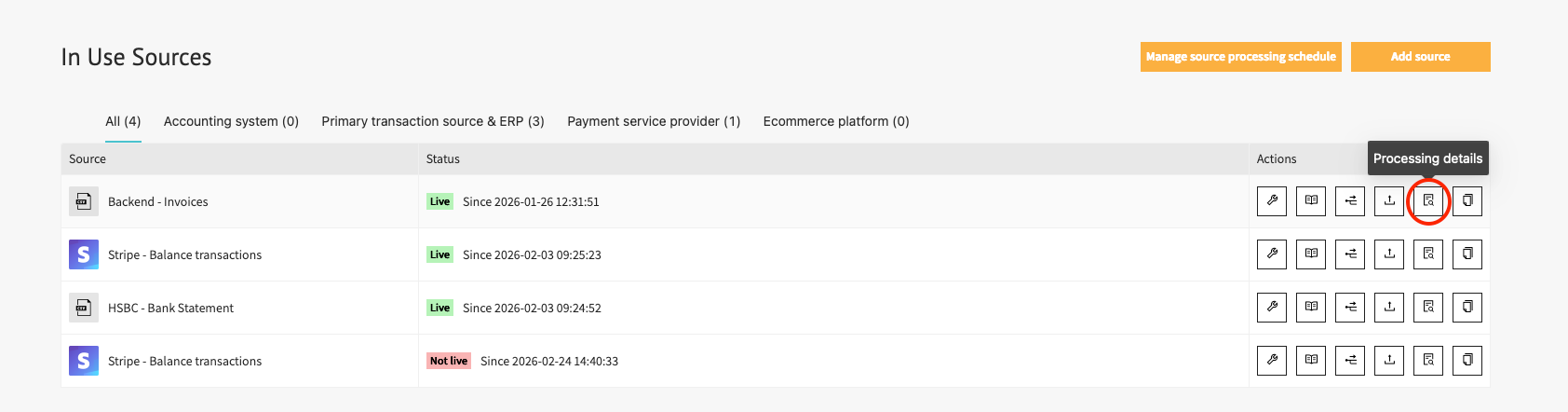
Navigate to Configuration → Sources → Processing Details. This page lists all files available for the selected source, including their names, sizes, and statuses.
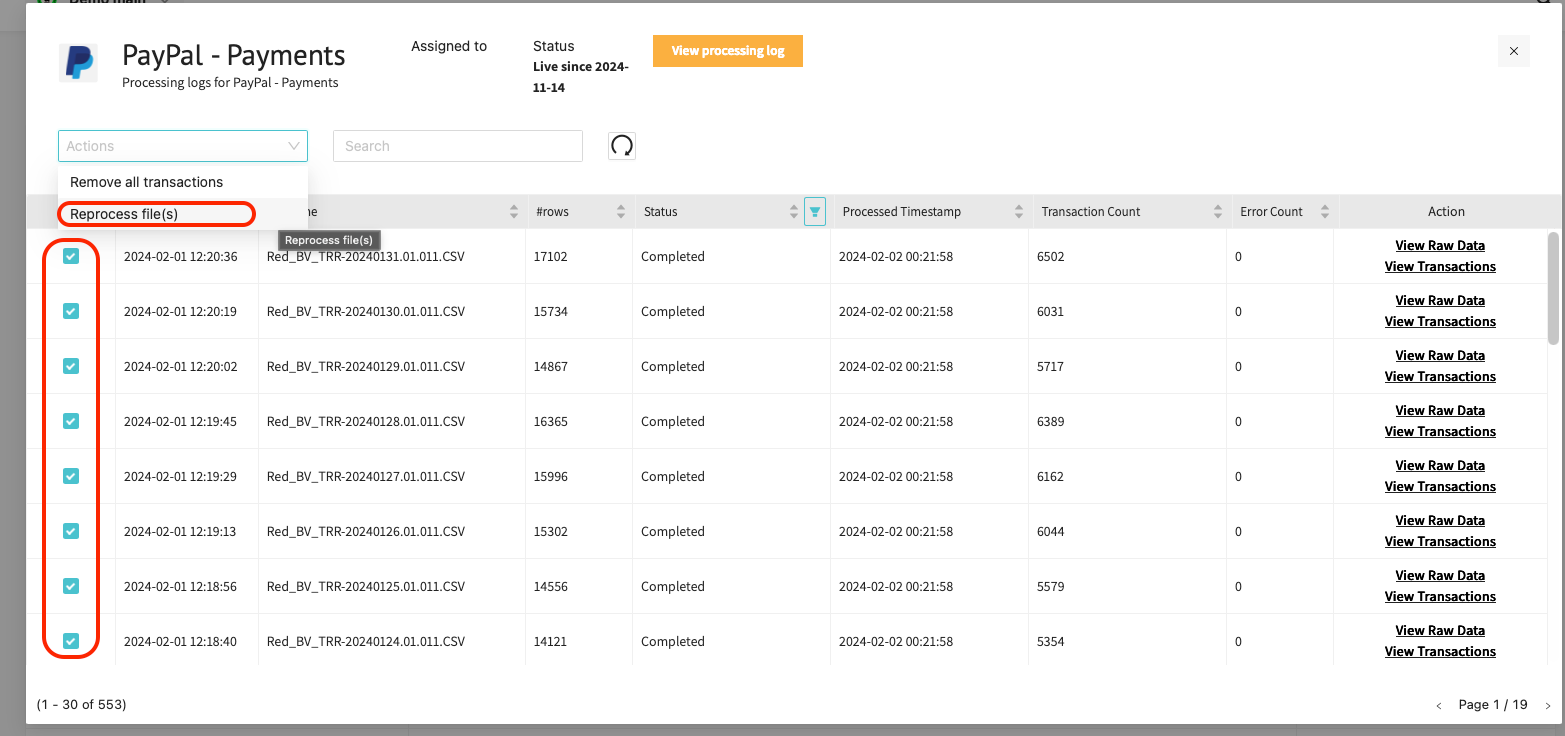
Select the files you want to process by checking their checkboxes. Then open the Action dropdown in the top-left corner and select Reprocess files. A green checkmark in the top-right corner confirms that processing has started successfully.
Processing status: While a file is being processed, its status changes to Being processed. Once finished successfully, the status updates to Completed. To review the full processing history click Processing log. It displays the files processed. the processing duration and the results of the individual steps taken during file processing.
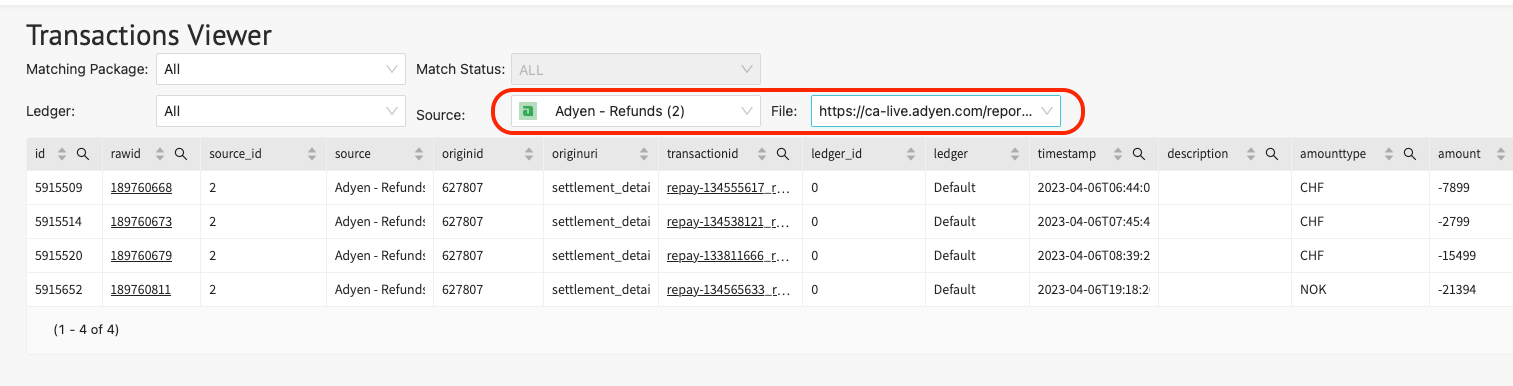
Viewing extracted transactions: After processing completes, the extracted transactions are available in Configuration → Transactions Viewer. Use the filters there to narrow results by source, matching package, or ledger. Viewing the extracted transactions for a specific file:
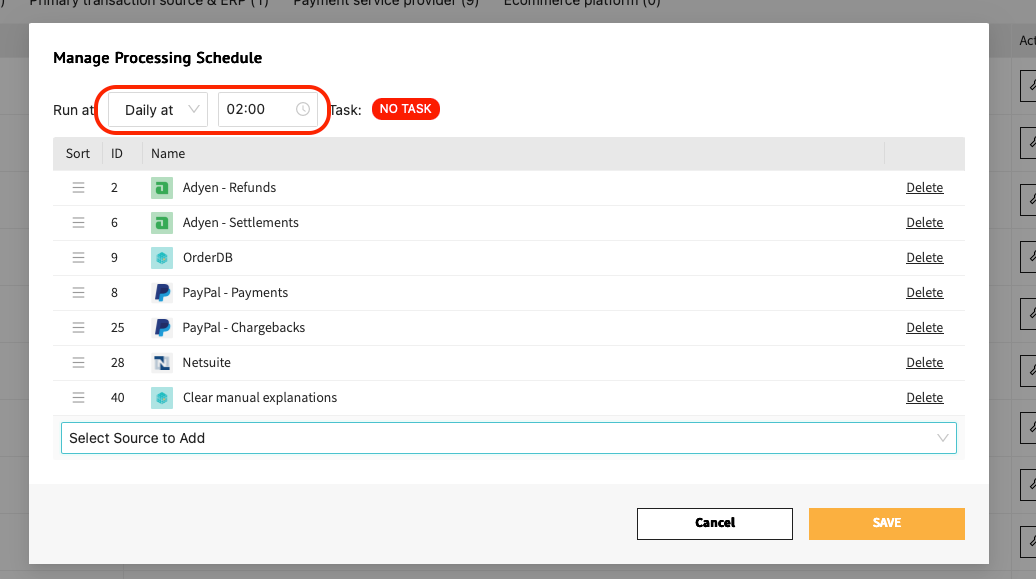
Setting up a processing schedule: If data is received on a regular and predictable basis, it is worth setting up an automated processing schedule. Click Manage source processing schedule to configure this. You can choose between daily or weekly processing at a specified time, and select which sources should be included in each scheduled run.