
The Manual Transactions page allows you to create, view, edit, and delete manual journal entries directly in Actuals. Manual journal entries are balanced, traceable corrections that are recorded as new transactions.
Manual transactions require periods to be enabled for your environment. If periods are not enabled, the page will display a message to enable them before manual transactions can be created.
Setting up a manual journal source
Before creating manual transactions, a dedicated source of type Manual entries (general journal entries) must be configured. This source attributes all manual entries to a controlled, auditable origin.
To add a manual journal source:
- Navigate to Configuration > Sources and click Add source
- Select Manual entries (general journal entries) as the source type
- Enter a name for the source and click Save
Unlike other source types, only the source name is configurable. Data mapping and ledger assignment steps do not apply to this source type. The source appears as Live immediately after saving. No file upload or processing is required.
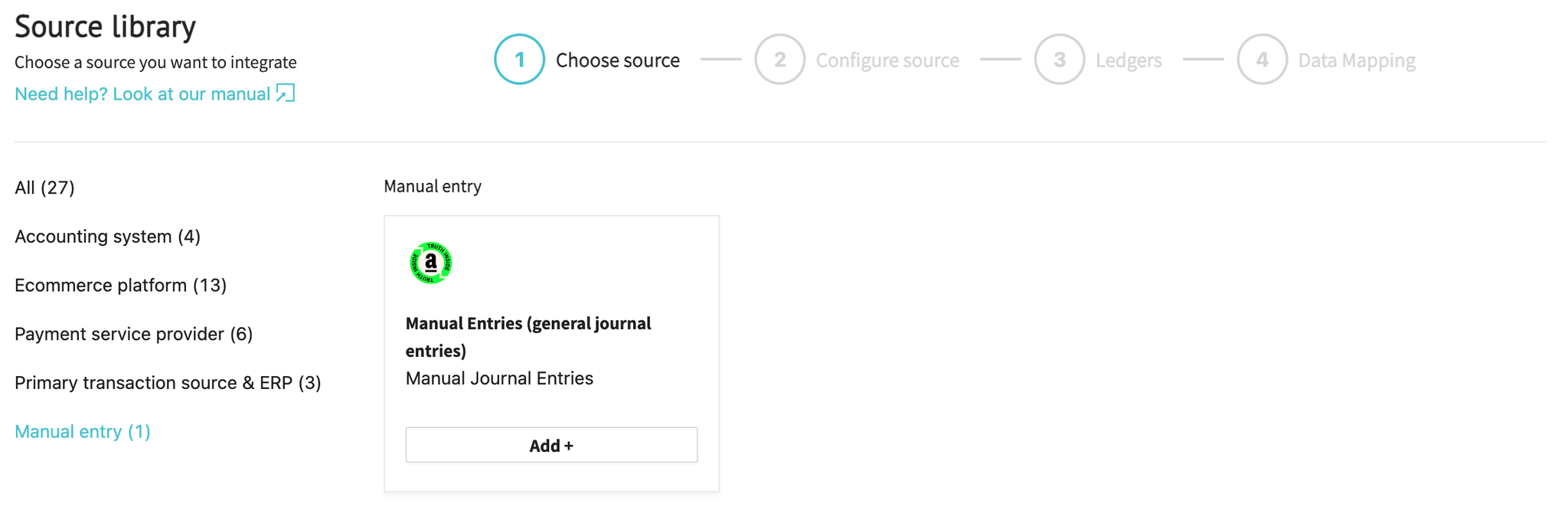

It is possible to create multiple sources for general journal entries. This can be usefull to group certain corrections into groups. Like you would normally do with multiple journals in an accounting application.
Creating a manual journal entry
Navigate to Transactions > Manual Transactions and click Create Transaction.
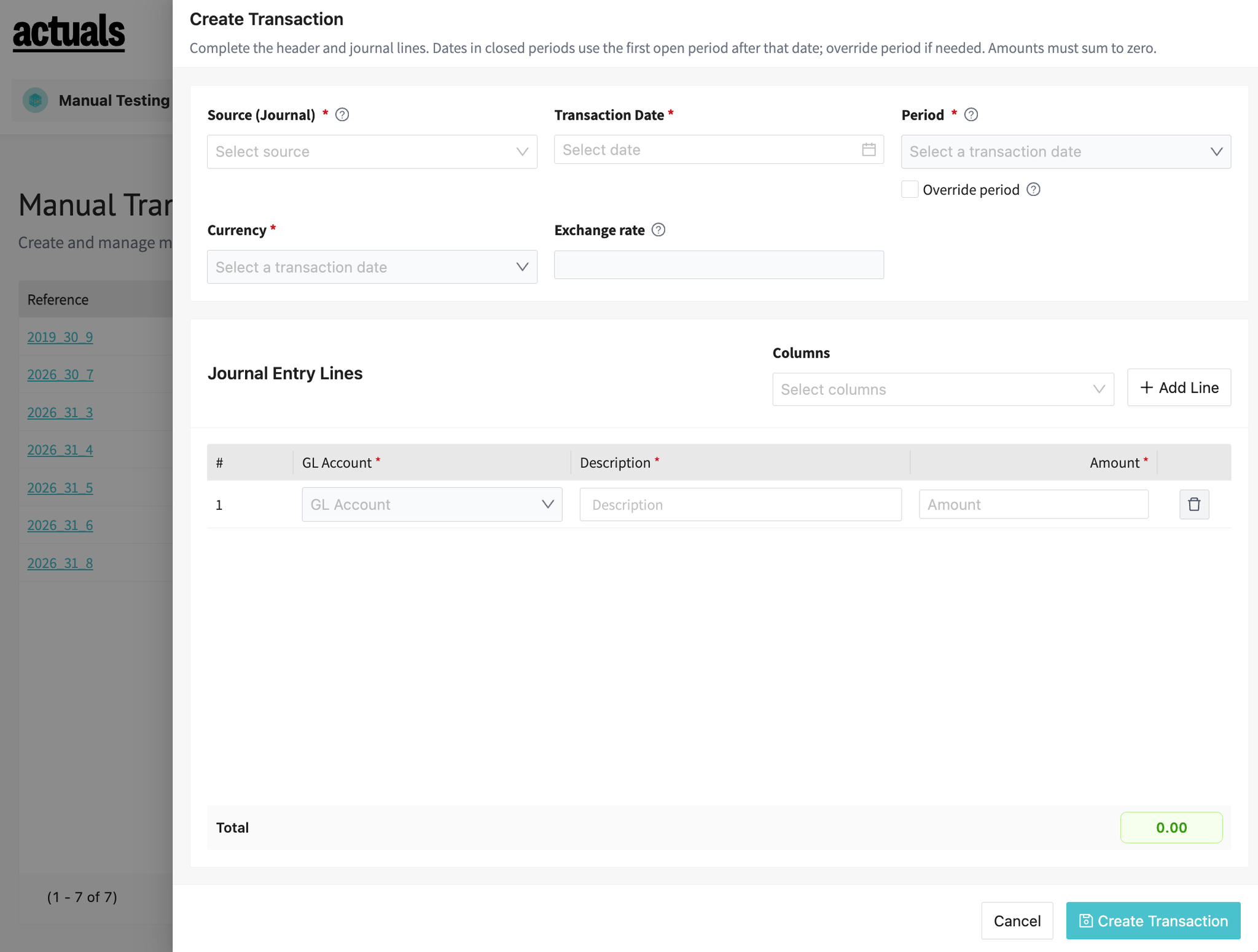
Select a Source (Journal) and a Transaction Date. The Period is automatically derived from the transaction date.
If Period-Date Validation is set to Mandatory, a manual transaction with a date in a closed period cannot be saved. If it is set to First Open Period, the closest open period is automatically assigned — a different open period can be selected if needed.
The Exchange rate is populated automatically based on the transaction date and is not editable.
The Currency field displays the base currency by default. If multi-currency is enabled and additional currencies are activated (Configuration → Currencies), the field becomes selectable, and the available currencies are shown.
Under Journal Entry Lines, add at least two lines using Add Line. Each line requires a General Ledger Account, a Description and an Amount. Additional columns can be added using the Columns selector.
The entry cannot be saved unless the sum of all line amounts equals zero. The Total at the bottom of the form shows the running balance.
On save, a reference number is automatically generated and assigned to the entry. The reference number is unique per source per financial year and cannot be changed after creation.
Viewing and searching manual transactions
The Manual Transactions page displays a table of all manually created entries.
To find a specific entry, use the search bar to search by reference number. Use the source filter to narrow the table to entries from a specific manual journal source.
Editing a transaction
Click on a reference number in the table to open the entry. The transaction opens inline on the same page.
In an open period, all fields are editable. Click Save Transaction to apply changes.
In a closed period, the transaction is read-only. No changes can be made and no Save button is shown.
Deleting a transaction
Transactions can only be deleted from within the edit view. There is no delete action available directly from the table.
In an open period, a Delete button is available at the bottom of the edit view. A confirmation is required before the transaction is removed.
In a closed period, the delete option is not available.