

The new Actuals app is organized around your month-end close, not a long configuration menu. Navigation follows how financial data moves through the platform.
Why we changed navigation
In the previous app, many day-to-day screens lived under Configuration or other technical groupings. That made setup easy to find, but it did not match how teams actually work during close.
The new sidebar follows the operational flow:
plain textImport → Transformation → Reconciliation → Reporting → Export
In plain terms:
- Data enters Actuals
- Data is transformed
- Data is reconciled
- Results are reviewed
- Results are exported
This should make onboarding clearer, keep related work together, and make ownership of each step more obvious.
New sidebar at a glance
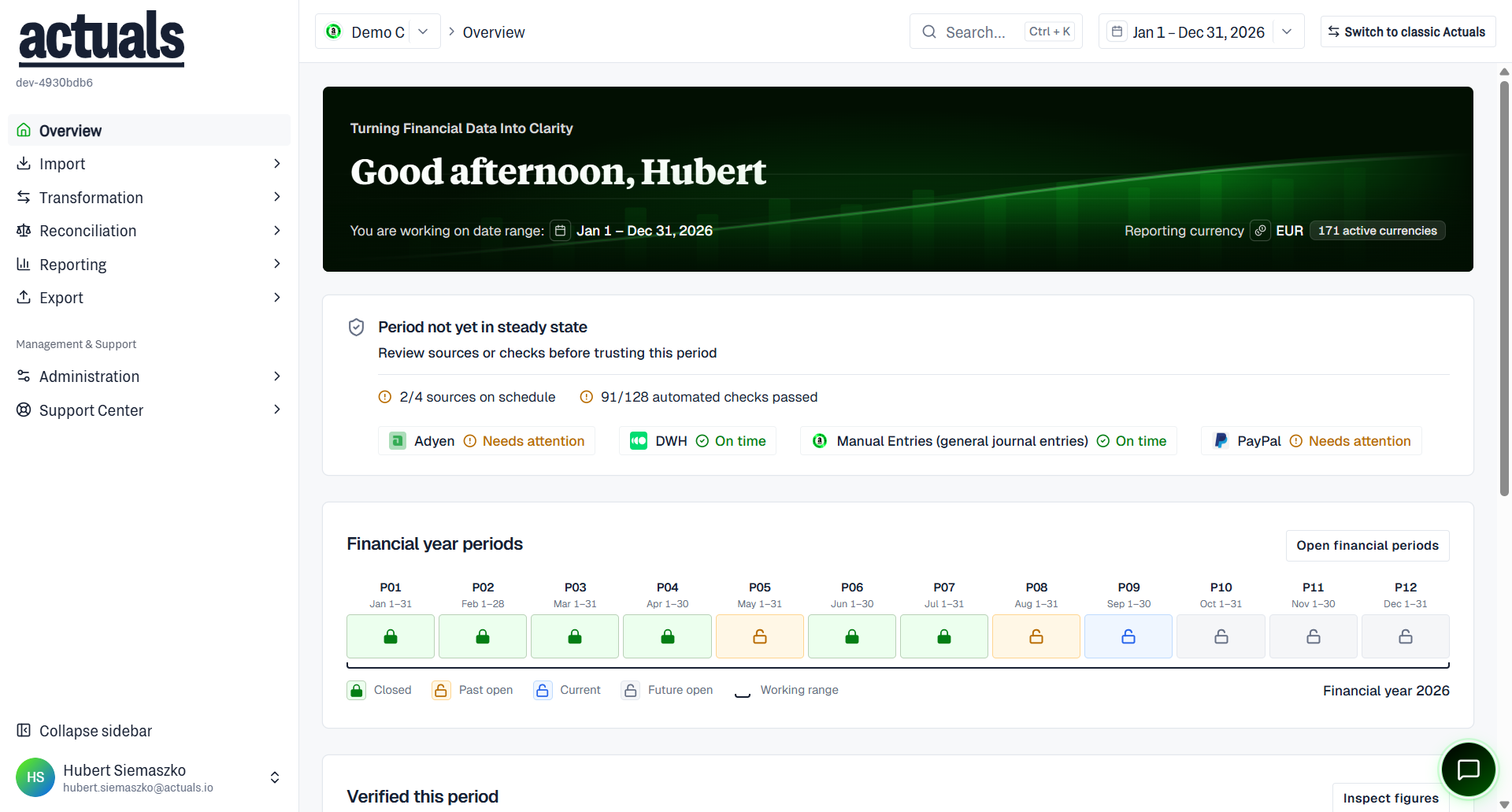
plain textOverview

Import
├── Setup (Credentials, Sources)
├── Files
└── Raw Data Explorer

Transformation
├── Setup (Currencies, Financial Periods, Mapping, General Ledger Accounts, schedules, queries)
├── File Transformation
└── Transformation Explorer

Reconciliation
├── Reconciliation Overview
├── Setup (Matching Packages, Explanation Categories/Rules, Reconciliation Schedule, Manual Queries)
├── Exceptions
├── General Journal Entries
└── Reconciliation Explorer

Reporting
├── Dashboards
└── Monitoring

Export
└── Exported Files

Administration
├── Settings
├── Users
└── Monitoring Rules

Support Center
├── Documentation
└── Support
Overview is the landing page for the new UI (more widgets and operational guidance can come later). There is no separate “Home” label in the sidebar.
Profile settings is reached from the account menu (avatar), not the main sidebar. Docs cover it as its own top-level topic next to Administration. Aging is not in the shipped sidebar.
Important naming changes
These are the renames you will notice most often:
Old name | New name | Where it lives now |
Unmatched Transactions | Exceptions | Reconciliation |
Manual Transactions | General Journal Entries | Reconciliation |
Periods | Financial Periods | Transformation › Setup |
Ledgers | General Ledger Accounts | Transformation › Setup |
Raw Transactions | Raw Data Explorer | Import |
Insights | Dashboards | Reporting |
Documents | Exported Files | Export |
Overview (old top-level) | Reconciliation Overview | Reconciliation |
Processing Details (transform side) | File Transformation | Transformation |
User Management | Users | Administration |
Administration Settings | Settings | Administration |

Exceptions is the new name for work that used to sit under unmatched transactions. If you are looking for items that still need attention in reconciliation, start there.
Where familiar pages moved
Most screens still exist. They are grouped by workflow step instead of one big Configuration area.
From Configuration into Import
- Credentials → Import › Setup
- Sources → Import › Setup
- Raw Transactions → Import › Raw Data Explorer
- File / ingestion views that used to sit under source processing → Import › Files
- Data integration method guides → docs under Import › Data integration
From Configuration into Transformation
- Currencies, Periods (now Financial Periods), Ledgers (now General Ledger Accounts) → Transformation › Setup
- Source Mapping and Iterations → combined under Transformation › Setup › Mapping
- Source processing schedule → Transformation Schedule
- Transform-side processing UI → File Transformation (not “Processing Details”)
- Part of Transactions Viewer → Transformation Explorer
From Configuration / Transactions into Reconciliation
- Matching Packages, Explanation Rules, Explanation Categories → Reconciliation › Setup
- Matching package schedule → Reconciliation Schedule
- Unmatched Transactions → Exceptions
- Manual Transactions → General Journal Entries
- Old top-level Overview → Reconciliation Overview
- Part of Transactions Viewer → Reconciliation Explorer
- There is no Aging screen in the new reconciliation sidebar
Reporting, Export, Administration, Profile
- Insights → Reporting › Dashboards (opens the first available embed)
- Monitoring graphs → Reporting › Monitoring
- Monitoring rules → Administration › Monitoring Rules
- Documents → Export › Exported Files
- User Management and company settings → Administration
- Account / password / language → Profile settings (account menu)
- Support and docs → Support Center
Screens that were split
A few old pages did more than one job, so they were split to match the workflow:
- Old processing views → Import › Files and Transformation › File Transformation
- Transactions Viewer → Transformation Explorer and Reconciliation Explorer
- Manual Queries → separate lists under Transformation Setup and Reconciliation Setup
Quick “I used to go here…” guide
If you want to… | Go to… |
Connect sources or credentials | Import › Setup |
Choose an integration method (SFTP, API, connector…) | Import › Data integration (docs) |
Inspect raw ingested data | Import › Raw Data Explorer |
Configure mapping, periods, or GL accounts | Transformation › Setup |
Work unmatched items | Reconciliation › Exceptions |
Create manual journal entries | Reconciliation › General Journal Entries |
Open dashboards | Reporting › Dashboards |
Download exported files | Export › Exported Files |
Manage users or company settings | Administration |
Change your password or language | Account menu › Profile settings |
What stays the same
- The underlying close process is still import, transform, reconcile, and export
- Core capabilities (sources, mapping, matching packages, explanations, monitoring, exports) are still there
- You can still reach documentation and support from the app
What changed is structure and naming, so the product matches how finance teams run month-end close.