
Manage your personal account details and password.
Page title in the app: Profile settings. Description: Manage your personal account details and password.
Open it from the account menu in the sidebar footer (your name / avatar):
- Profile settings
- Language — English or Dutch (Beta)
- Log out
(A Theme control may also appear in this menu when enabled for your environment; it was not shown on staging.)
Routes:
- Profile tab:
/profile/settings/me
- Password tab:
/profile/settings/password
This is your account — not company settings (Administration › Settings) and not teammate management (Administration › Users).
Profile tab
Personal details — update your name and contact details.
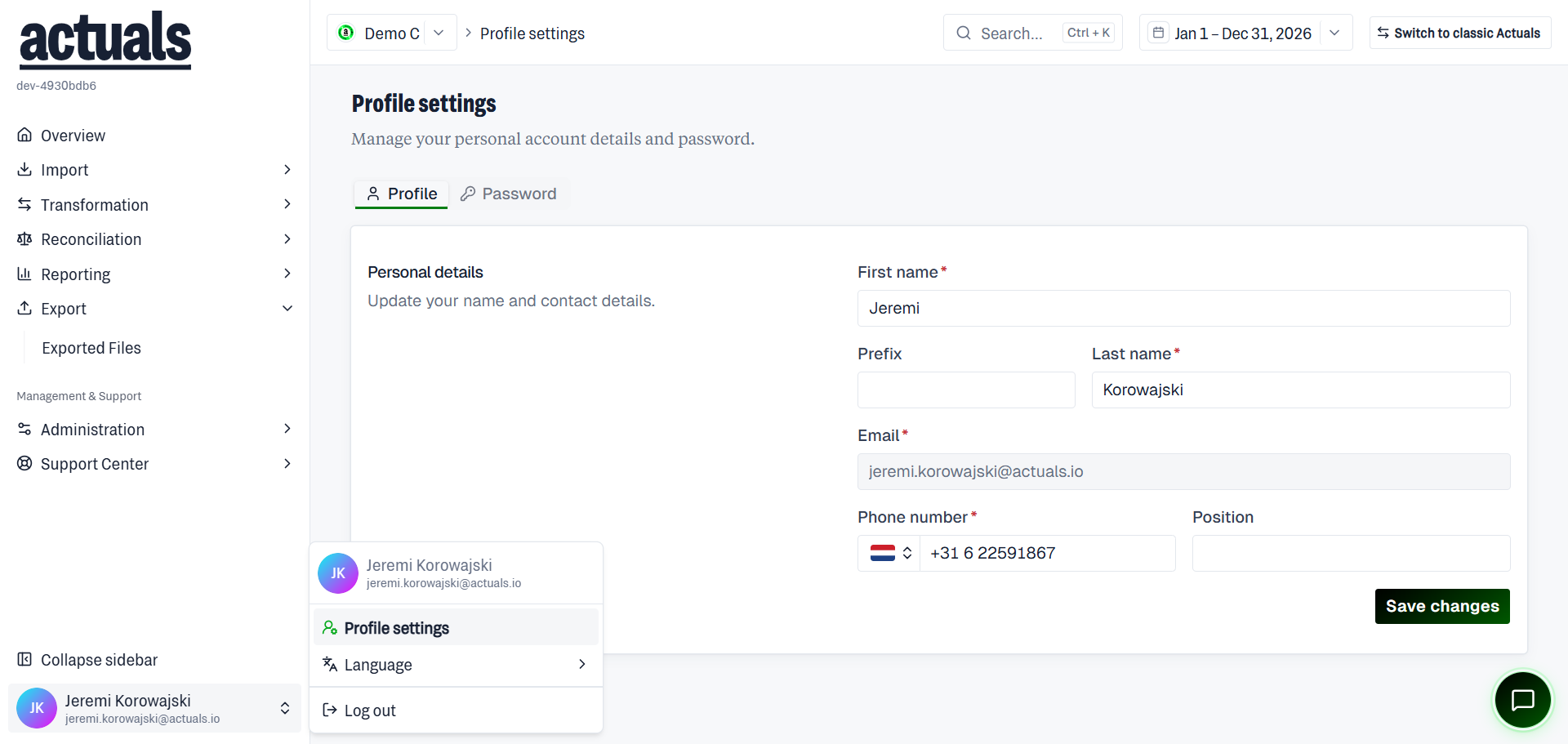
Fields:
- First name (required)
- Prefix (optional)
- Last name (required)
- Email (required, shown but not editable here)
- Phone number (required)
- Position (optional)
Use Save changes to apply. Success message: Profile saved.
Identity-provider (SCIM) users
If your profile is managed by your organization’s identity provider, fields are read-only and you see: Your profile is managed by your organization's identity provider and can't be edited here. Contact IT to change those details.
Password tab
Password — change the password you use to sign in.
Fields:
- Old password
- New password (minimum 8 characters)
- Confirm new password
Use Update password. After a successful change you are signed out shortly so you can sign in with the new password.
SCIM / IdP-managed accounts cannot change password here (read-only notice applies).
Tips
- Prefer Okta SSO when your company requires it; password reset and profile edits may be disabled in Actuals
- Admins inviting users can set Require password change on next login under Administration › Users
- For company branding, dashboards, and monitoring rules, use Administration — not Profile settings


