
The Actuals platform provides Financial years and periods functionality. This functionality is commonly used by accounting applications to prevent changes to periods that have been closed.
What Are Financial Periods?
Financial periods are specific time frames used to organize and track your business's financial activity. They allow you to divide your reconciliation records into manageable segments, making it easier to verify transactions, identify discrepancies, and maintain accurate records.
Most businesses use monthly financial periods that align with calendar months, though some may use custom periods based on their specific needs, such as quarterly or four-week periods.
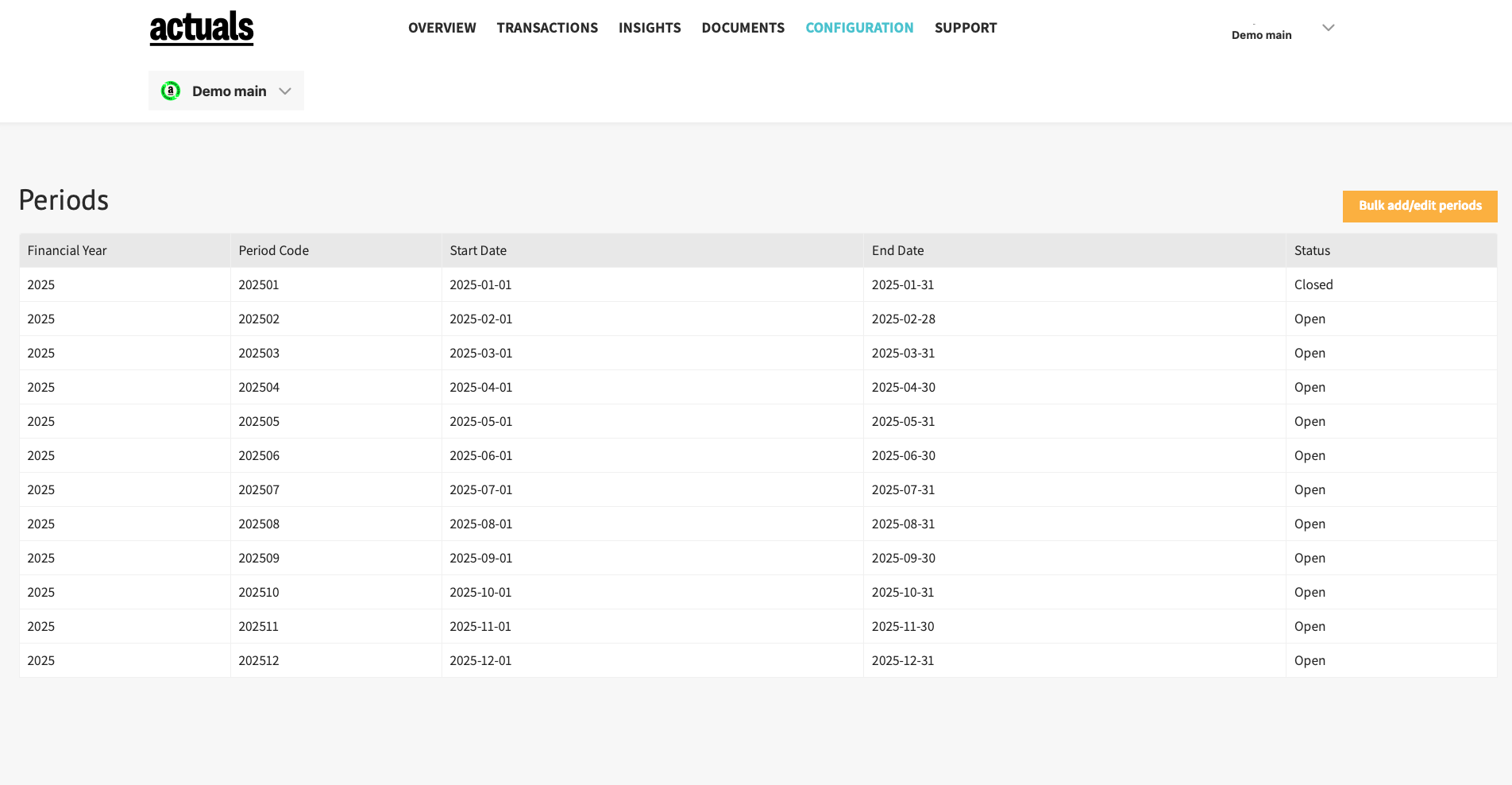
How do periods get assigned?
A transaction get assigned to a period based on two properties. The transaction date and period status.
- If a transaction is posted to date 01-01-2025. Actuals checks the Period table, finds the period to which 01-01-2025 belongs and assigns period 202501 (in case of monthly periods).
- Periods have a status (open or closed). When a period is closed by default Actuals blocks import of these transactions (with a period closed error).
Alternatively it is possible to assign transactions to the first open period. If you prefer this behaviour over blocking with a period closed error please contact your Actuals Implementation Consultant. This setting means you allow the so called “period/date” mismatches.
Adding new Periods
- Sign in to Actuals and navigate to “Configuration” → “Periods”
- Click ‘’Bulk add/edit periods’’
- Choose the desired year to create financial periods for and click ‘’Generate periods for financial year’’
- Twelve financial periods have been automatically created, each spanning from the first to the last day of each month. These periods can be extended, shortened or edited in any way it might be needed. These periods can also be closed/opened or deleted
- Click ‘’Save’’
Closing a Period
Closing a financial period locks the records to prevent further changes. Once closed, transactions within that period cannot be added, edited, or deleted without reopening it.
- When to close? Close a period once you've completed reconciliation and are satisfied with the results. Most businesses close periods monthly.
- Before you close - Review your reconciliation reports to confirm everything balances correctly, ensure all expected transactions have been processed
- How to close in Actuals?
- Sign in to Actuals and navigate to “Configuration” → “Periods”
- Click ‘’Bulk add/edit periods’’
- choose the desired period, set the status to “Closed” and hit ‘Save’’