
Exported Files
Browse and download completed export documents for your company.
Open Export › Exported Files in the app (
/export/exported-files).(Formerly Documents.)
Important
These are one-off, manually triggered exports from elsewhere in the app — ad-hoc downloads of specific data, not final account-ready book exports.
When you export from another page, the file appears here after a few minutes for download.
List
Columns typically include ID, Name, Type, Description, Company, and Date. Row actions include View and Download.
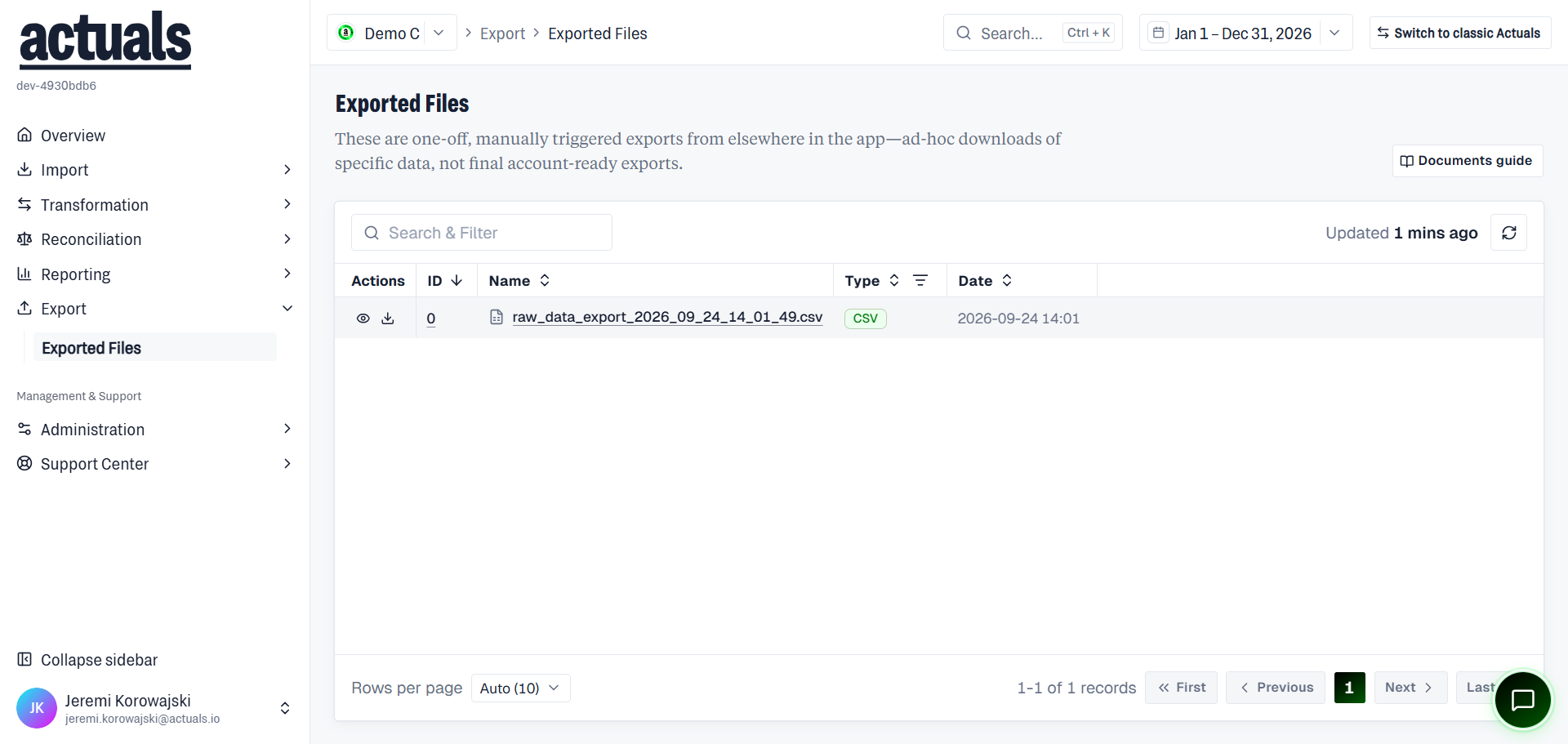
Empty state: No exported files yet — export data from another page first.
Where exports come from
Common starters:
- Import › Raw Data Explorer
- Transformation › Transformation Explorer
- Reconciliation › Reconciliation Explorer or Exceptions
- Other pages that offer an Export action
After you start an export, wait a few minutes, then refresh Exported Files and download the result.