
Monitoring
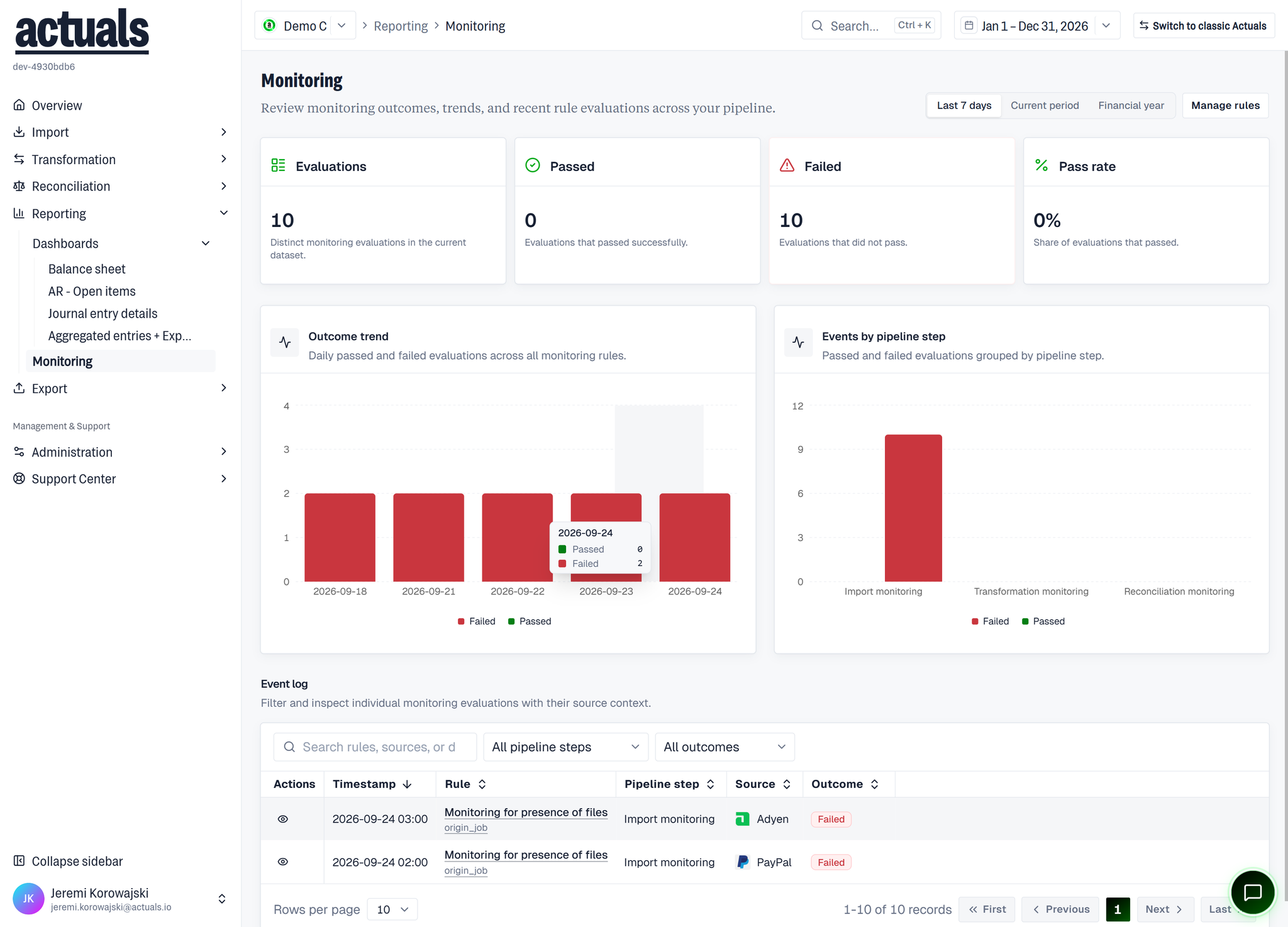
Review monitoring outcomes, trends, and recent rule evaluations across your pipeline.
Open Reporting › Monitoring in the app (
/reporting/monitoring).What you see
Period
Use Last 7 days, Current period, or Financial year to change the window.
KPIs
- Evaluations — distinct monitoring evaluations in the current dataset
- Passed — evaluations that passed successfully
- Failed — evaluations that did not pass
- Pass rate — share of evaluations that passed
Charts
- Outcome trend — daily passed and failed evaluations across all monitoring rules
- Events by pipeline step — passed and failed evaluations grouped by pipeline step
Event log
Filter and inspect individual monitoring evaluations with their source context.
Controls include Search & Filter, Pipeline step, and Outcome. Columns typically include Actions, Timestamp, Rule, Pipeline step, Source, and Outcome. Use View event details on a row for evaluation result, rule context, parameters, pipeline step, source, and recorded payload.
Manage rules
Manage rules opens Administration › Monitoring Rules, where you configure which checks run (from global templates), which objects they watch, and which roles receive alerts.
Section landings for Import, Transformation, and Reconciliation also show a compact monitoring widget for that step, with Manage rules and View all events linking here.
Empty and access states
- No monitoring events — nothing matches the current filters/range
- Monitoring unavailable — your role cannot view monitoring events for this company
Related
- Compact widgets on Import / Transformation / Reconciliation landings
- Administration › Monitoring Rules — create and edit rules and notification subscribers