
Files
Files shows every collected or uploaded file (data batch) for your sources, and is where you upload new files for file-based sources.
Open Import › Files in the app.
This page replaces the old per-source File upload and Processing details views.
Browse files
- Select a source from the sources list (or search for one).
- Review the file table for that source.
- Use search to find a file by name.
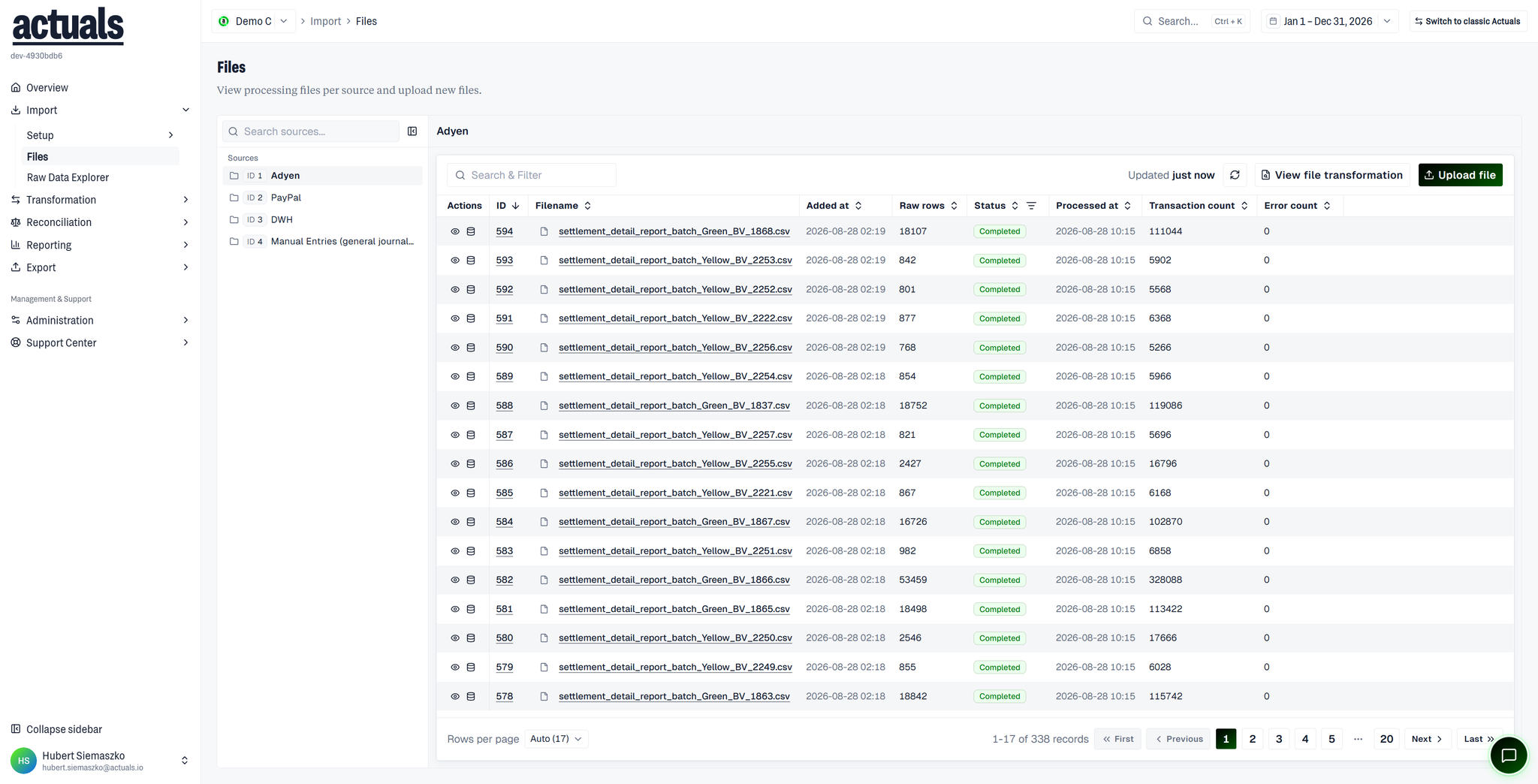
Columns typically include:
Column | Meaning |
Timestamp / Added at | When the file was collected or uploaded |
Filename | File name (and path when applicable) |
Raw rows | Rows stored from the file |
Status | Ingestion and processing state |
Processed at | When rows were turned into transactions |
Transaction count | Transactions produced (often ≤ raw rows after filters) |
Error count | Rows that failed during processing |
Statuses
Common statuses include:
- Being ingested / Being processed — work in progress
- Not processed yet — collected, waiting for transformation
- Completed — processed successfully
- Error ingesting data / Error processing data — investigate the file or mapping
- Error: invalid currency, missing exchange rate, or no valid period — fix currencies, rates, or financial periods, then reprocess
- Deleted, To be deleted, Archived, Permanent — retention and cleanup states
Upload a file
- Select the target source.
- Choose Upload file.
- Drag a file into the dropzone or browse from your computer.
- Confirm Upload file.
Notes:
- Upload one file at a time (you can replace the selection before submitting).
- The file is processed for the selected source — match the source’s delimiter / header settings.
- Large files may need SFTP or another integration method instead of the browser upload. See
 Data integration.
File actions
From a file row you can typically:
- View raw data — open rows in
 Raw Data Explorer
- View transformed data / View file transformation — inspect results after processing
- Test mapping — apply the current mapping to this file’s data (useful while editing mapping)
Tips
- Collection and processing are separate: a completed upload can still show Not processed yet until the transformation schedule (or a manual reprocess) runs.
- After mapping changes, reprocess relevant files so transactions reflect the new rules.
- For connector sources, files often appear automatically on the collection schedule defined on the Sources.