
Sources
A source is a dataset from one application or file feed (for example Adyen settlements, Shopify orders, or a CSV upload). The Sources page lists every import source for your company and lets you create, view, edit, and duplicate them.
Open Import › Setup › Sources in the app.
Typical setup
Most companies connect a mix of:
- Payment service providers (for example Adyen, PayPal)
- Order or invoicing systems (Shopify, custom order feeds)
- ERP or accounting systems (Business Central, NetSuite, and others)
Many PSPs use a connector that collects data automatically. File-based feeds often start from a CSV-style connection. Details for each connection type live under  Data integration.
Data integration.Create a source
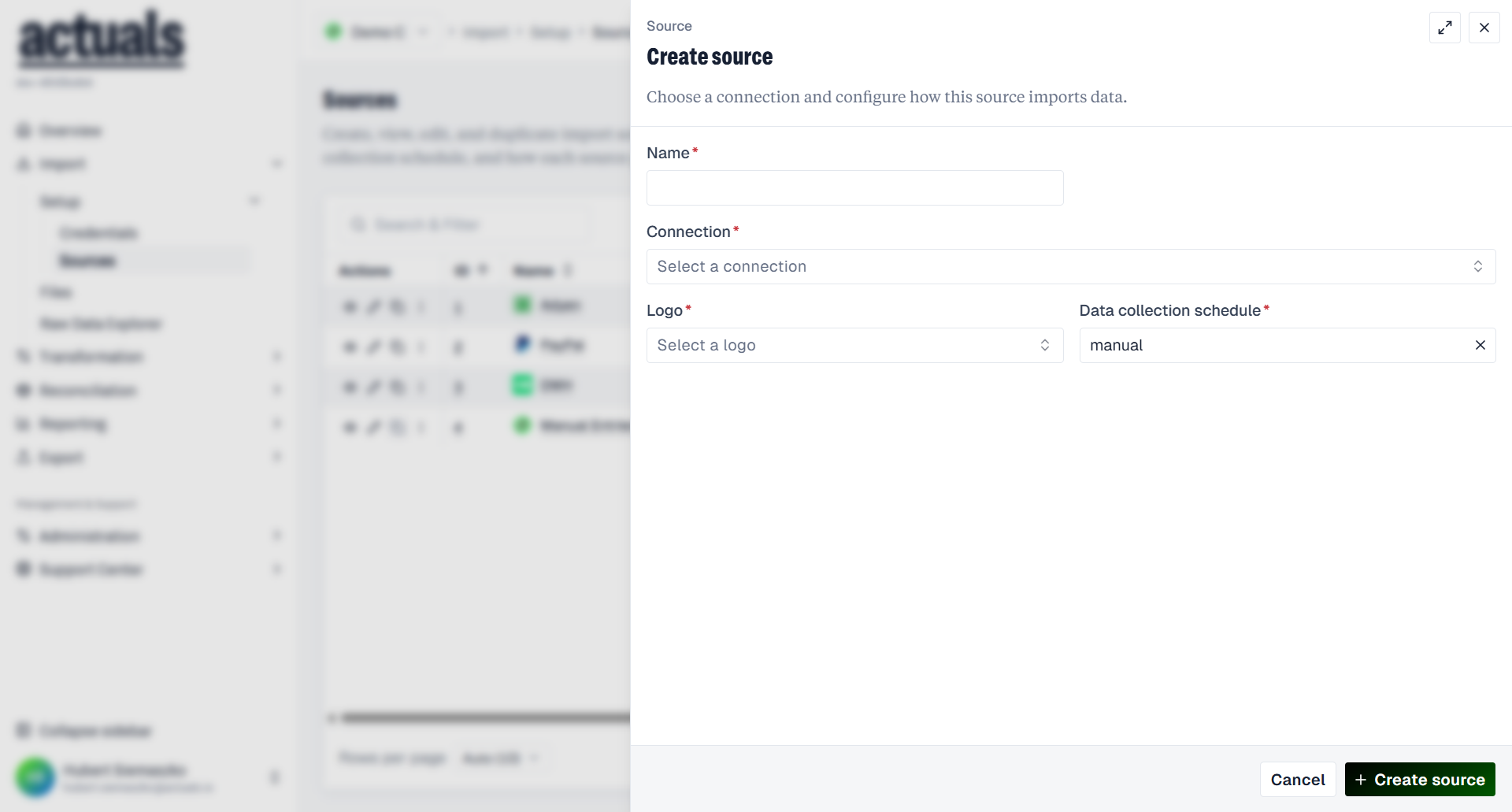
- Choose Create source.
- Select a connection. Once chosen, the connection cannot be changed for that source.
- Select a credential of the matching type (create one under
 Credentials if none exist yet).
- Configure general settings (see below).
- Save. Review the collection schedule and mapping before you rely on the source in production.
General settings
Exact fields depend on the connection. Common settings include:
Setting | Purpose |
Name | Label used across Actuals |
Credential | Secrets used to collect data |
Data collection schedule | Daily, weekly, or manual |
Data processing type | How new files combine with existing data (for example incremental vs full / differential modes) |
Default header | Expected column names when data arrives |
File filter / separator | Which files to process and how values are split (file-based sources) |
Unique identifier | Columns that uniquely identify each row (required for some differential modes) |
Processed by other source | When another source populates this dataset |
For connector-based sources, leave connection-specific defaults unless Actuals or your implementation guide says otherwise.
Collection vs processing
Actuals separates data collection from data processing:
- Collection — pulling or uploading files into the source (schedule on the source, or manual upload on Files)
- Processing — converting collected rows into Actuals transactions (Transformation Schedule, company-wide)
From the sources list you can see whether a source is on the transformation schedule, and open Manage Transformation Schedule to choose when processing runs and which sources it includes.
Looking for other source actions?
In the new app, actions that used to sit on each source now live elsewhere:
What you need | Where to go |
Iterations and data mapping | Transformation › |
Upload files and review processing status | Import › |
Browse raw imported rows | Import › |
Sources list
The overview shows ID, Name, Type, Connection, Status (for example Live), Transformation Schedule, Created at, and Last updated. Use Search & Filter and Refresh to find sources.
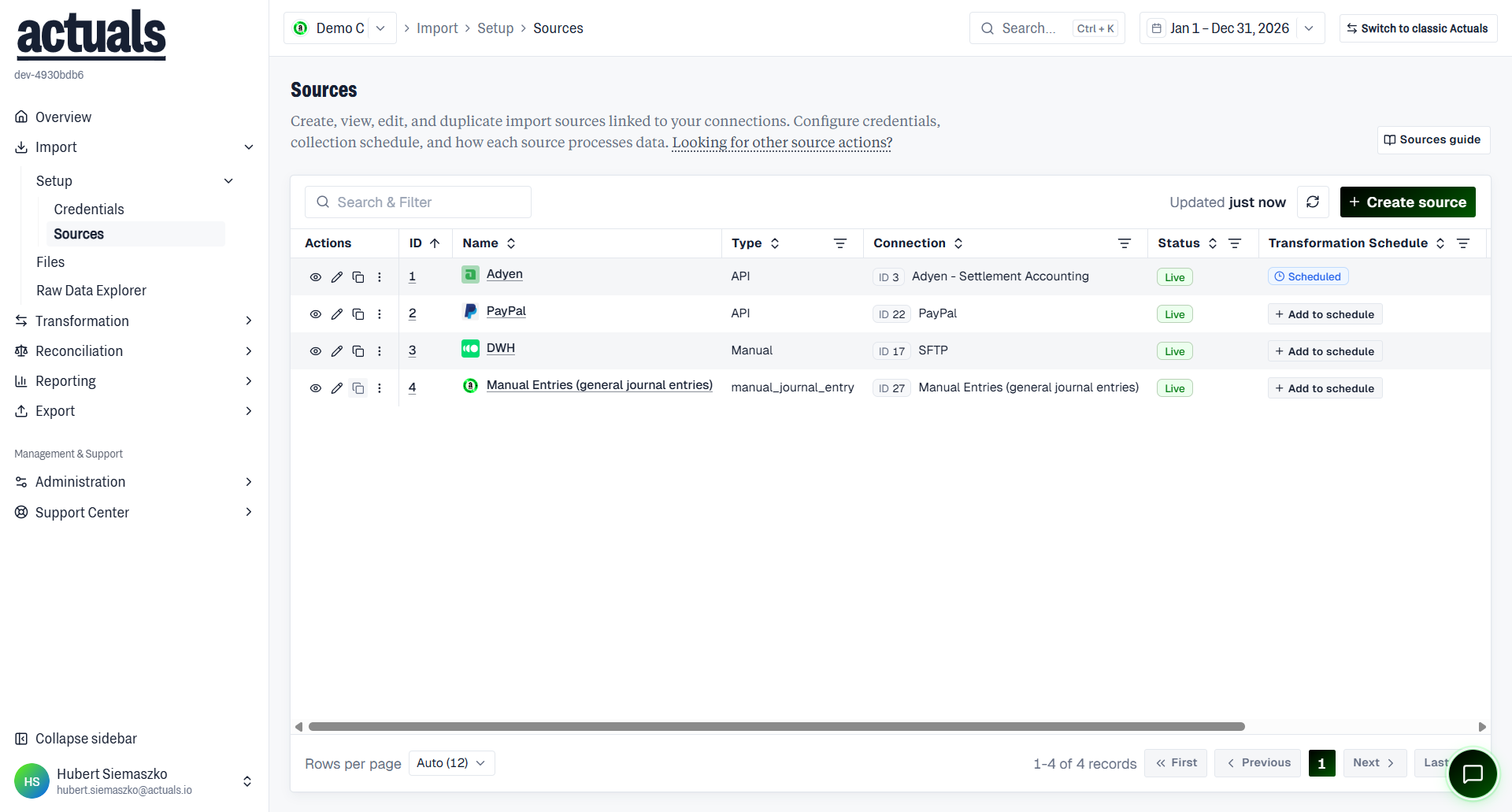
Row actions include View, Edit, Duplicate, and more. If a source is not on the company transformation schedule, the schedule column shows Add to schedule.
On the detail page you see the source ID, name, connection, status, category (for example Payment service provider), and type (for example API), with View / Edit.
Permissions
Creating or editing sources requires the right role permissions. If create is blocked, contact an administrator.