
Raw Data Explorer
Browse raw imported source rows before mapping turns them into Actuals transactions. Use this page to verify what was collected, debug column values, and export a slice of raw data.
Open Import › Raw Data Explorer in the app.
(Formerly Raw Transactions / raw data viewer on each source.)
Filter the grid
- Choose a source (required to load meaningful data).
- Optionally narrow to a specific file (or leave All files).
- Use column search filters to find values in individual columns.
- Clear one column filter, or clear all column filters, when you want a wider view.
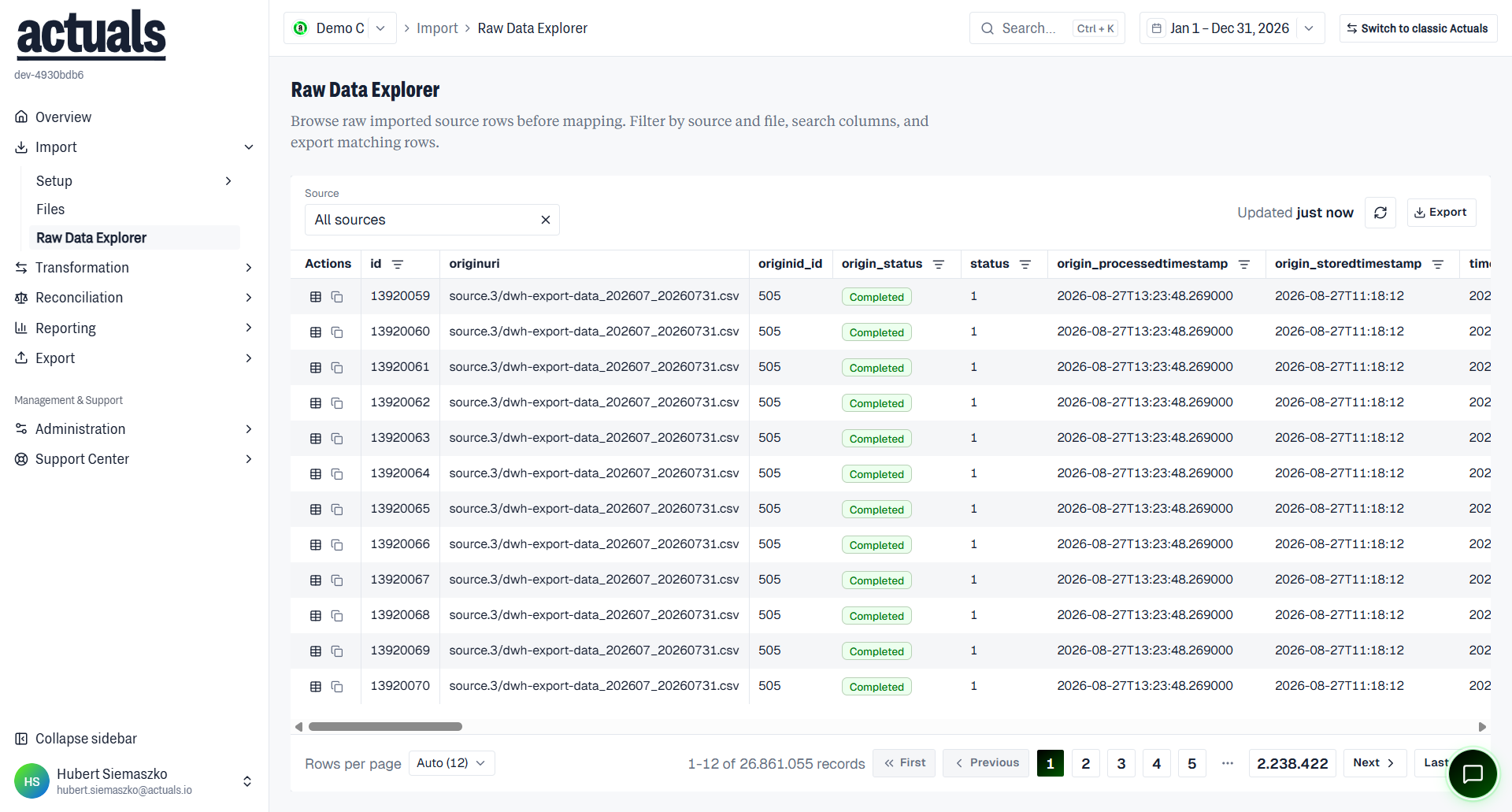
The footer shows totals such as row count and column count for the current result set.
What you are looking at
Rows are the as-ingested source data — not yet mapped journal lines. If transformation is still running, a processing notice may appear; not all visible data may be fully up to date until processing finishes.
Export
Use Export to start a background export of raw data:
- Visible page data — only the rows on the current page
- All matching rows — up to the export cap for the current filters
The export runs in the background and appears under Exported Files after a few minutes. Open Exported Files from Export in the app when the file is ready.
When to use this page
- Confirm a new connector or upload landed the expected columns
- Compare a problematic file to a known-good file
- Spot delimiter, encoding, or header issues before adjusting mapping
- Pull a raw extract for an offline check
For mapped output and transaction-level exploration, use Transformation explorers after processing has run.
Related pages
 Files — which files exist and their processing status
 Mapping — how raw columns become transaction fields
 Sources — source collection settings