
Goal: manually upload a CSV (or agreed file) for a file-based source.
Open Import › Files.
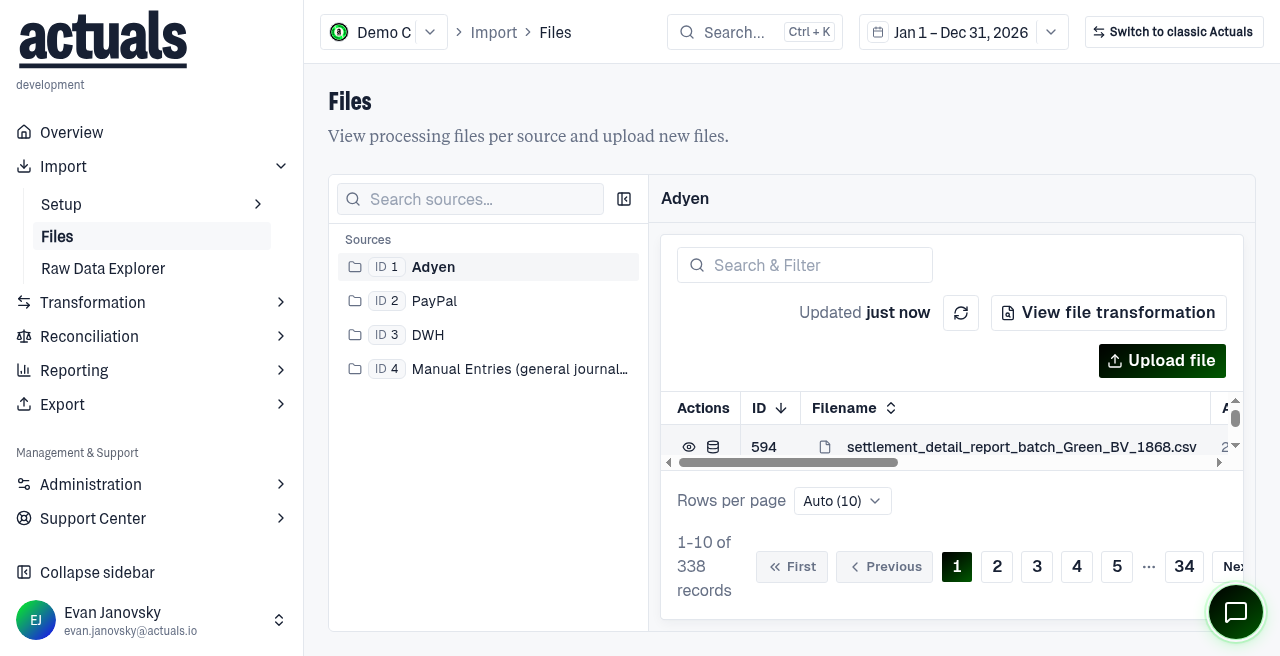
Steps
- Select the target source from the list (search if needed).
- Choose Upload file.
- Drag a file into the dropzone or browse from your computer.
- Confirm Upload file.
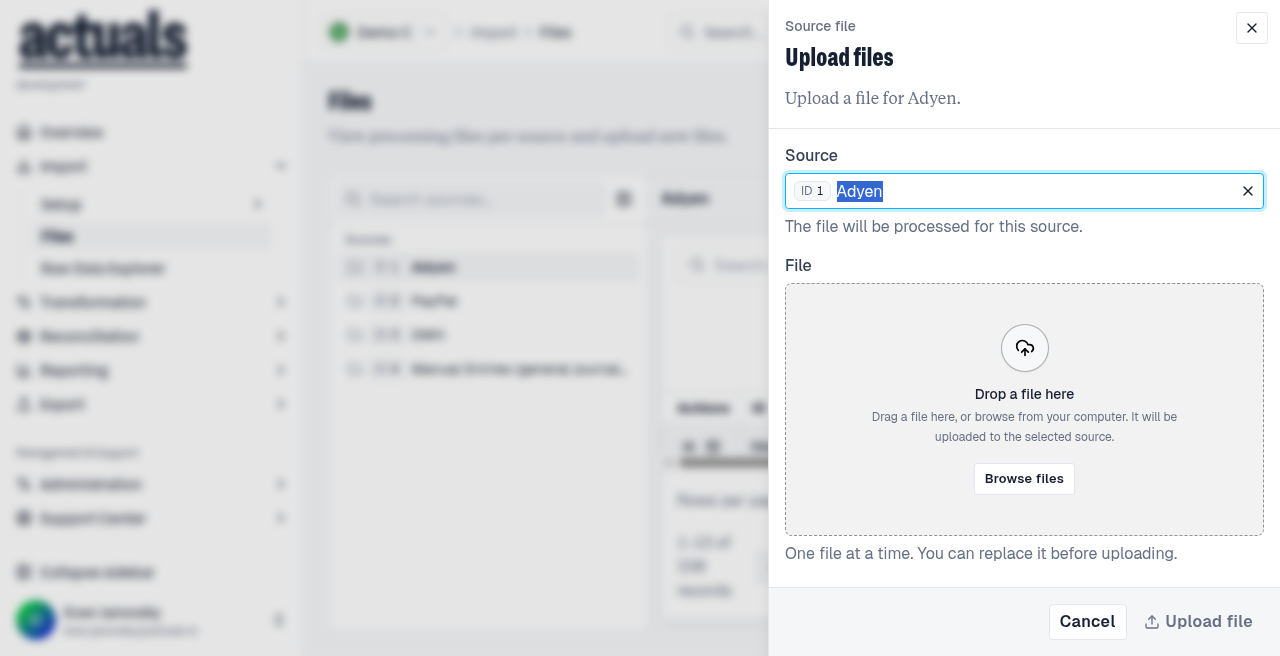
Notes
- Upload one file at a time.
- Match the source’s delimiter and header settings.
- Prefer CSV with a header row unless your consultant agreed otherwise.
- Large or recurring dumps: use Actuals SFTP or another method under
 Data integration.
After upload
Watch status on the Files table:
- Not processed yet — waiting for Transformation Schedule (or reprocess)
- Completed — rows became transactions
- Error statuses — check mapping, currency, period, or file layout
Optional: View raw data in Raw Data Explorer, or Test mapping while editing Transformation mapping.
Full reference:  Files.
Files.