
Mapping
Configure iterations and data mapping for each import source — how raw rows become Actuals transactions (and often multiple journal lines).
Open Transformation › Setup › Mapping in the app.
This combines the old per-source Data Mapping and Iterations pages.
Mapping list
Choose a source to open its mapping. The list shows ID, Name, Type, Status, Iterations, Last updated, and Connection. Use Search & Filter and Refresh to find sources. Manage Transformation Schedule opens the company processing schedule.
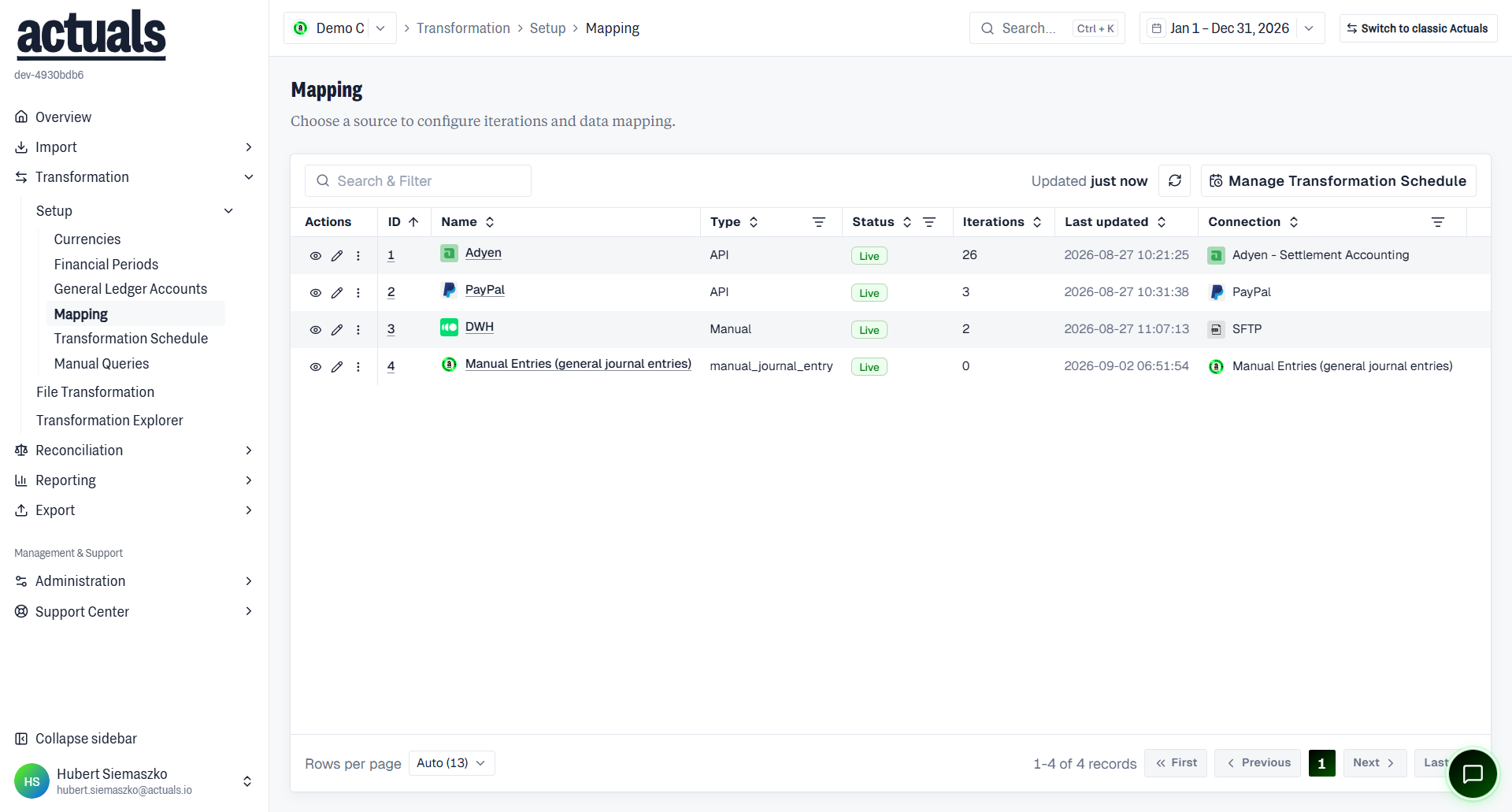
Row actions include View mapping, Edit mapping, and more.
Mapping detail
On a source mapping you typically see:
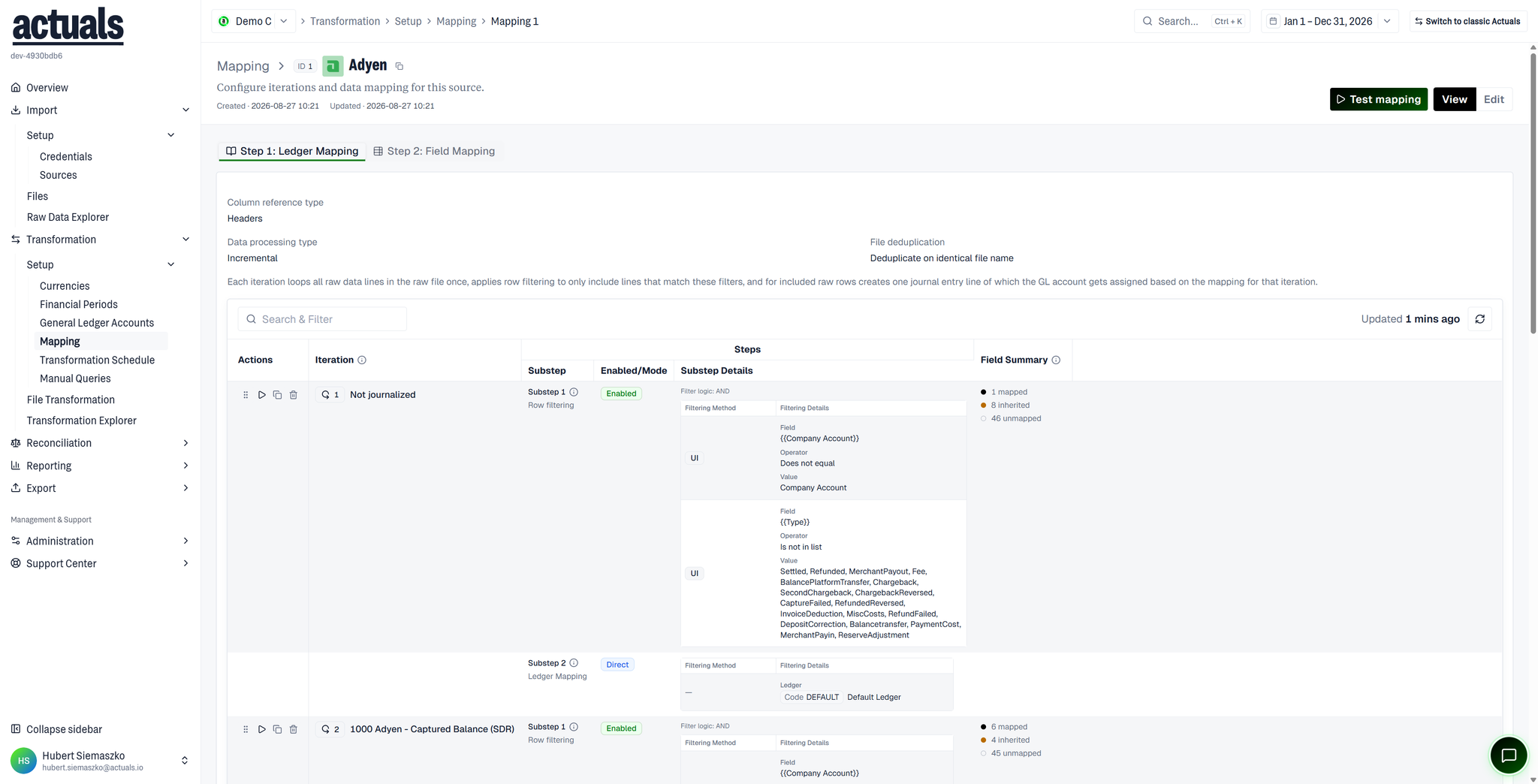
- Header with source name/ID, plus Test mapping, View, and Edit
- Tabs: Step 1: Ledger Mapping and Step 2: Field Mapping
- Source processing context such as column reference type (Headers or columns), data processing type (for example Incremental), and file deduplication (for example deduplicate on identical file name)
- An iterations table (Iteration, Substep, Enabled/Mode, Substep Details)
What mapping covers
Iterations
Use iterations to define how many output rows (journal entry lines) each input row should produce.
Example: one sales input line may need separate iterations for Debtors, Revenue, and VAT.
Best practice: name each iteration after the journal line it represents.
Iterations also support:
- Assigning general ledger accounts (ledger mapping)
- Filtering rows (exclude rows that should never become transactions)
- Expanding one raw row into multiple output rows
Field mapping
Map import columns to Actuals transaction properties (transaction id, timestamp, amount, and many more).
- Default data mapping applies to every iteration unless overridden
- Iteration data mapping customizes fields for a specific iteration
Column references:
- By index:
__column1__,__column2__, …
- By header name (when configured):
{{ColumnName}}
When multicurrency is enabled, amount and amount currency are required.
Ledger mapping vs field mapping
Typical flow on a source mapping:
- Ledger Mapping — which GL account(s) apply
- Field Mapping — property formulas and filters
Formulas (common)
Formulas should generally output text/strings. Exceptions:
- timestamp — datetime (often
TO_TIMESTAMP,STR_TO_DATE, orFROM_UNIXTIME)
- amount, vatamount, quantity — integers (often
CAST); amounts are in cents (12.50 →1250)
Useful functions include
CONCAT, REPLACE, LEFT / RIGHT / SUBSTRING, UPPER, TRIM, IF / CASE, and JSON/XML helpers such as JSON_EXTRACT_PATH_TEXT and XML_EXTRACT_XPATH_TEXT.CONCAT returns null if any argument is null — prefer ARRAY_TO_STRING(ARRAY_CONSTRUCT_COMPACT(...), ', ') when optional fields should be skipped.Filters
Filters exclude rows from becoming transactions. Multiple filters combine (all conditions must pass). Example: only import rows where order status is
successful.Test mapping
Test mapping applies an iteration to a processed input file and shows mapped output from the first rows.
- Select a processed file
- Choose an iteration
- Run the test and review mapped results
Save the source/mapping first so processed files are available. Prefer testing before you rely on a mapping in production.
Related pages
 Sources — source connection and collection settings
 Files /
  Raw Data Explorer — inspect input files and raw rows
- General Ledger Accounts — ledger codes used in ledger mapping
- File Transformation — reprocess after mapping changes