
File Transformation
Inspect file transformation outcomes by source, reprocess files, or remove their transactions.
Open Transformation › File Transformation in the app (
/transformation/processing-details).(Docs stubs formerly called this Processing Details.)
Import ›  Files focuses on collected files and uploads; this page focuses on processing actions and outcomes.
Files focuses on collected files and uploads; this page focuses on processing actions and outcomes.Select a source
Pick a source from the list (for example Adyen, PayPal, DWH, Manual Entries). The file table loads for that source.
File table
Columns typically include ID, Filename, Added at, Raw rows, Status, Processed at, Transaction count, and Error count.
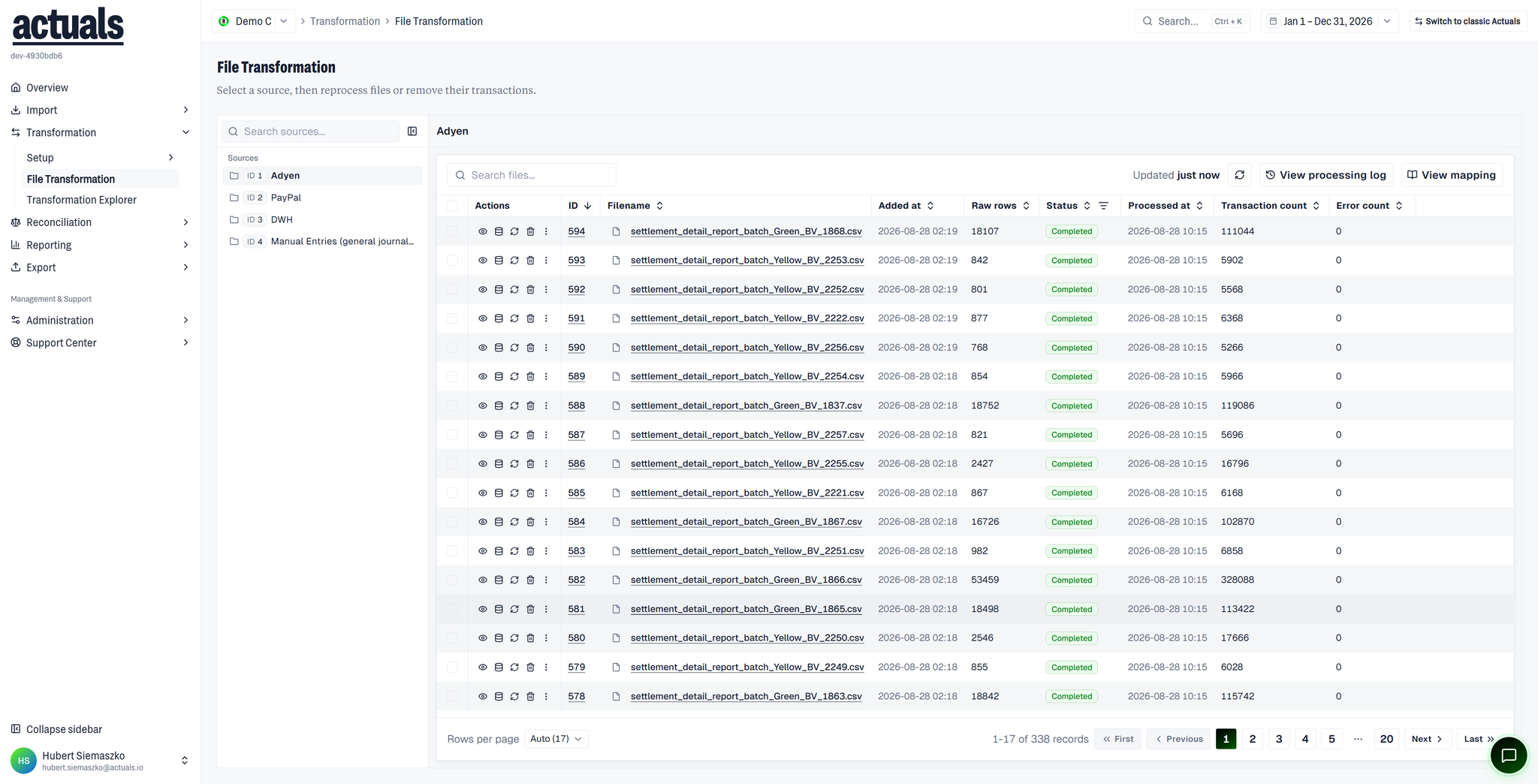
Completed files show processing results; search and refresh help find a specific batch.
Actions
From the toolbar or a file row you can:
- View processing log — pipeline and action events for the source (including nested subprocessing logs)
- View mapping — jump to that source’s mapping
- View file / View raw data — inspect the batch or open raw rows
- Reprocess file / Reprocess files — run transformation again (useful after mapping, currency, or period changes)
- Remove all transactions — permanently delete transactions created from the selected file(s) (cannot be undone)
The service typically picks up requested actions within a few minutes.
Related setup
 Mapping — fix formulas/filters, then reprocess
 Transformation Schedule — recurring processing instead of manual runs
 Transformation Explorer — browse resulting transactions