
Transformation Schedule
Choose when the company-wide processing job runs and which sources it processes. Collection (pulling or uploading files) is separate from this schedule.
Open Transformation › Setup › Transformation Schedule in the app.
(Formerly the source processing schedule.)
Schedule settings
- Frequency — Daily or Weekly
- Time / Weekday — when the job should run
- Times are shown in the company time zone (for example America/Los_Angeles) and converted to UTC when saved
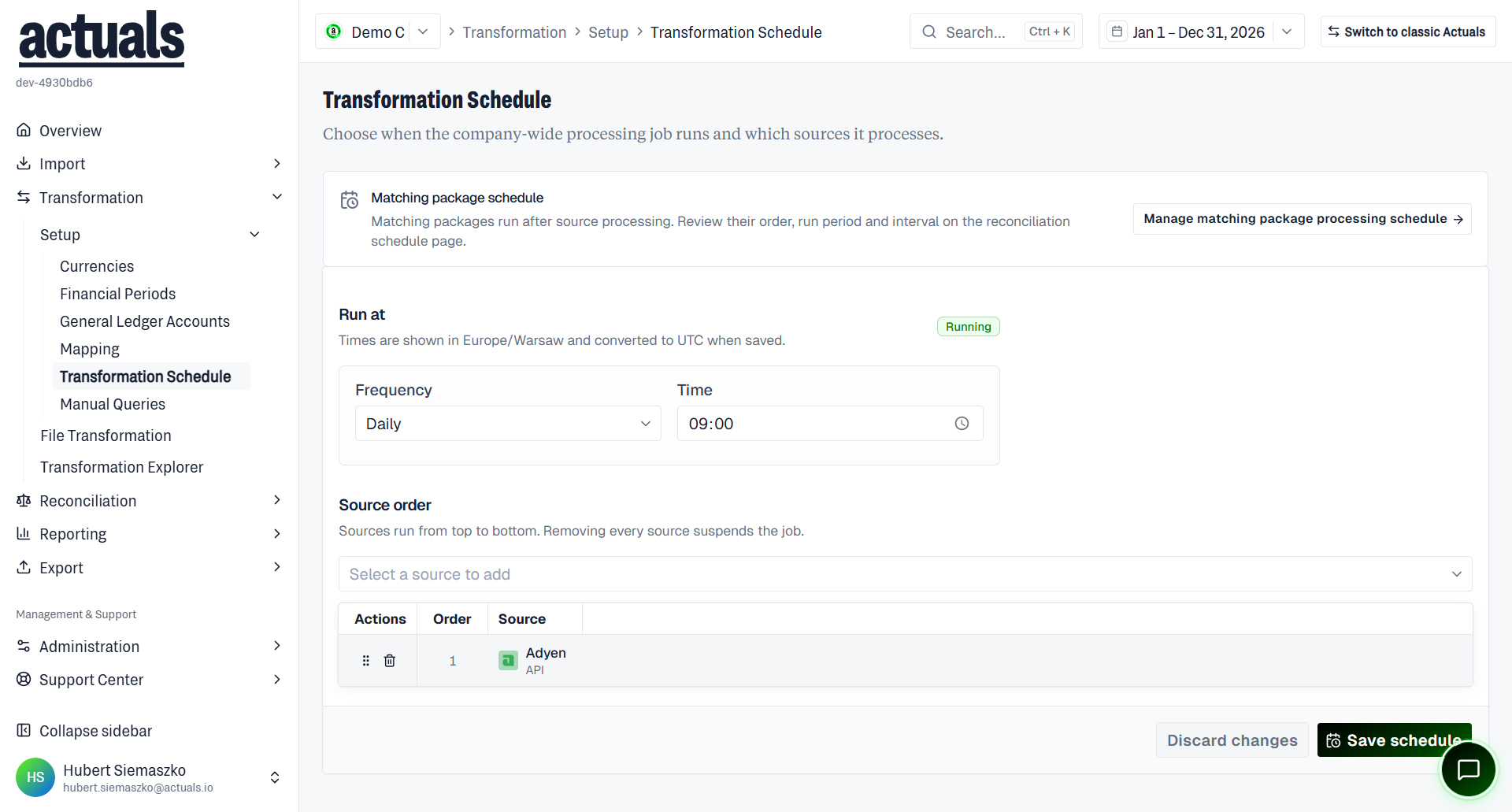
Job state may show as Running, Suspended, or Not configured.
A matching-package panel links to Manage matching package processing schedule (reconciliation schedule is separate and usually runs after source processing).
Source order
Sources on the schedule run top to bottom (Order, Source).
- Add source to schedule
- Reorder or remove sources from the schedule
- Save schedule / Discard changes
Removing every source suspends the processing job. From Import › Sources, unscheduled sources show Add to schedule as a shortcut here.
Related
- Matching packages often run after source processing — review reconciliation schedule separately
- After mapping or period changes, use
 File Transformation to reprocess specific files without waiting for the next scheduled run