
Currencies
Configure multicurrency, set the administration currency, and activate currencies used when transforming and reporting amounts.
Open Transformation › Setup › Currencies in the app.
First-time setup
- Set the administration currency (for example EUR). This can be set only once.
- Optionally enable Multicurrency if imports should validate against active currency codes.
- Activate the currencies your sources use.
Until an administration currency is set, currency activation is blocked.
Multicurrency
- On — imports validate against active currency codes; amount and amount currency fields become required in mapping when multicurrency is enabled
- Off — that validation no longer applies
After changing multicurrency, you may need to redeploy all sources so processing picks up the new setting.
Currency status table
Columns typically include Enabled, ID, Name, Status, Currency Rate (relative to the administration currency, for example EUR), and Rate Updated At.
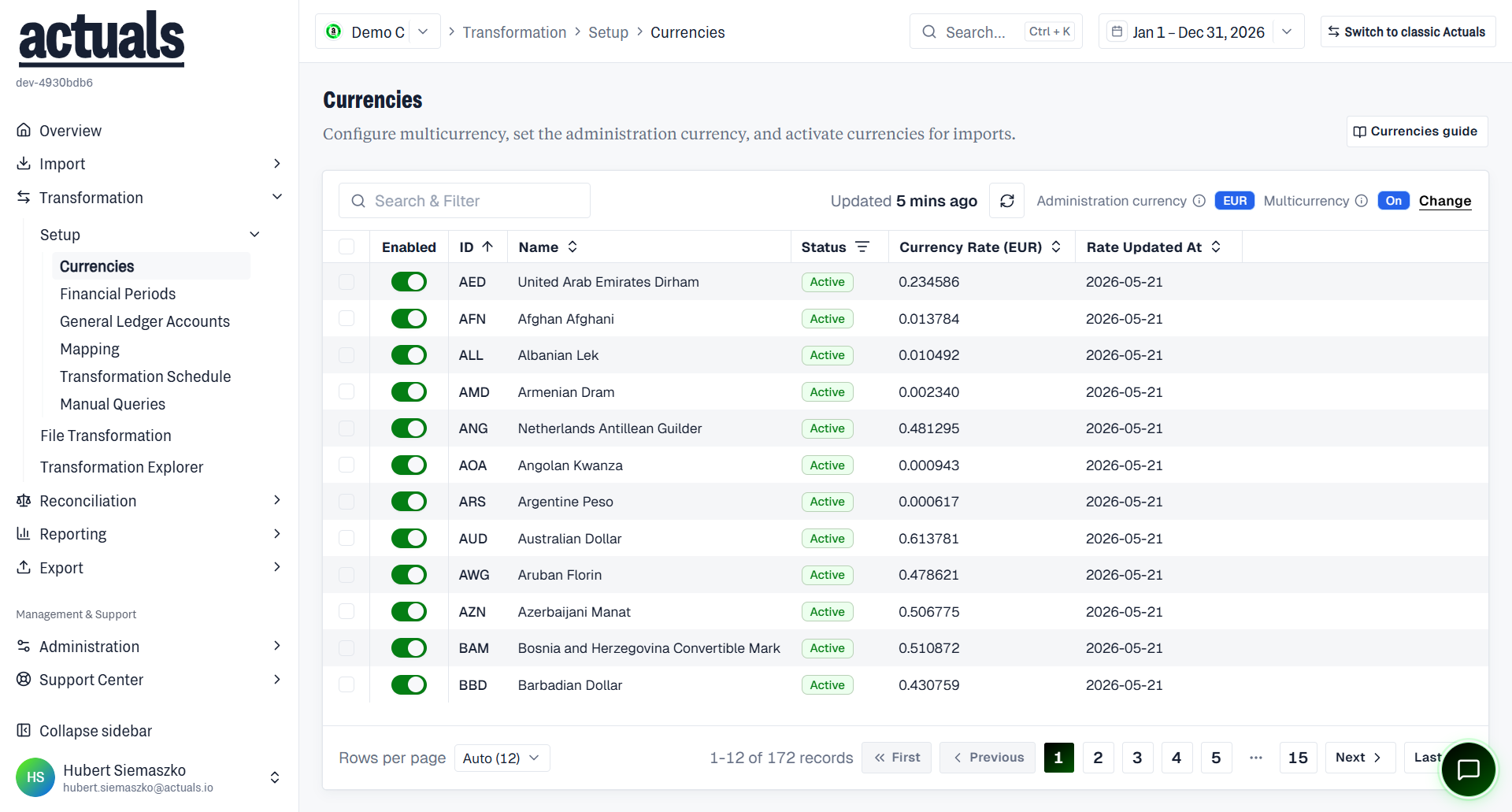
Statuses include:
- Administration Currency — the company base currency (protected)
- Active / Inactive
Select rows and Activate or Deactivate as needed (confirmation required). Use Search & Filter and Refresh to find currencies.
Tips
- Keep only the currencies you actually import active to avoid noise in validation.
- File processing can fail with currency or exchange-rate errors if a code is inactive or a rate is missing — fix currencies here, then reprocess under
 File Transformation.