
Financial Periods
Manage the financial period calendar, period-date validation, and source redeploy for your company.
Open Transformation › Setup › Financial Periods in the app.
(Formerly Periods.)
Periods table
Each period shows period ID/code, financial year, start and end dates, open/close state, and status (for example Open, Closed, Past open, Future open).
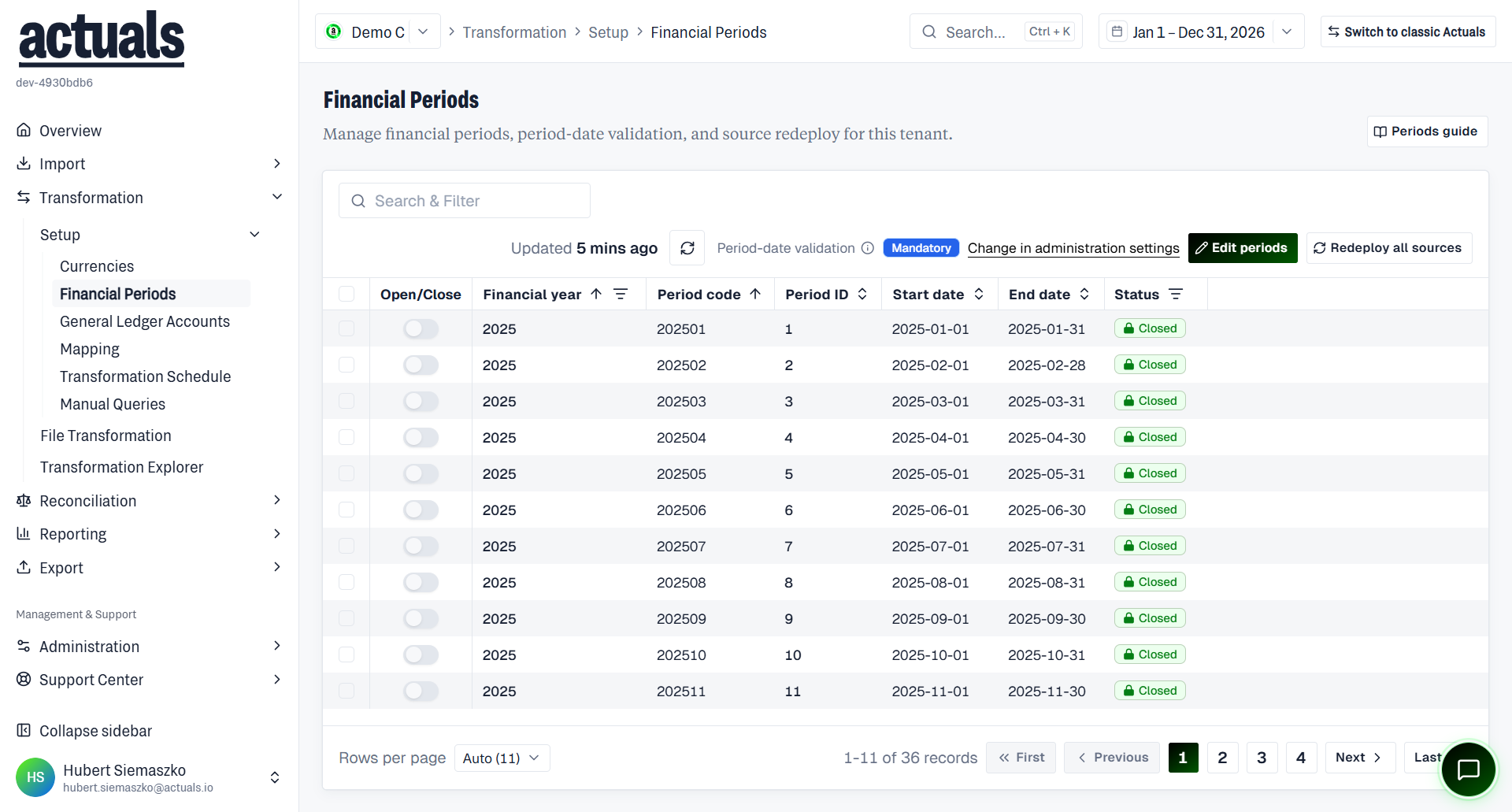
Actions:
- Generate year — create 12 monthly open periods for a financial year
- Edit periods — add, edit, or remove periods by year (closed periods lock code and dates; status can still change)
- Open / Close selected periods (confirmation required)
- Redeploy all sources — after major calendar changes
- Change in administration settings — related company settings for period-date validation
Period codes must be unique 6-digit values; dates use
YYYY-MM-DD.Period-date validation
Choose how imports behave when a booking date falls outside open periods:
Mode | Behavior |
Mandatory | Reject imports whose booking date falls in a closed period |
First open period | Assign to the first open period after the booking date, keep the booking date, and record a period-date mismatch |
Some administration settings for this mode may also be reachable from company settings.
Redeploy sources
When periods go from disabled to enabled (or after major calendar changes), use Redeploy all sources. Redeploy can take several minutes. Period edits and redeploy may be unavailable while a redeploy is already inactive/blocked by permissions.
Related errors
Files can fail with no valid period available if booking dates do not land in an open period under your validation mode. Fix periods here, then reprocess under  File Transformation.
File Transformation.